Photoshop alternatives are having a moment, and this time price is only part of it. Yes, the $22.99 a month single-app subscription stings. But the bigger story this year is that the best Photoshop alternative now costs nothing at all. Canva bought Serif in 2024, and in October 2025 it made Affinity, a genuinely professional editor, completely free. That single move reshuffled the whole list, and it is why every “best of” article from last year is already out of date.
We did our own homework first. We researched every serious option on the market, then signed up and tested each tool ourselves: opened the same layered PSD files in each one, pushed the free plans until they stopped us, and noted exactly where each tool beats Photoshop and where it falls short. The result is a list of 9 Photoshop alternatives, each matched to a specific job, with plain notes on pricing, free plan limits, and the catches nobody puts in their marketing.
One honest note before we start. No single free tool replaces every corner of Photoshop. A photographer, an illustrator, and a social media manager all say “Photoshop” but mean three different jobs. The trick is matching the tool to your job, and that is what this guide does.
Quick Picks: The Short Version
Short on time? Start here.
Affinity
Professional editing with zero subscription
Price Free
Fully free with a free Canva account
Photopea
Opening and editing PSD files in a browser
Price Free
Free forever with ads
Pixelmator Pro
Mac users who want pro tools for one payment
Paid from $49.99
One-time purchase, no subscription
How We Tested These Photoshop Alternatives
Every tool on this list went through the same routine. We opened a set of layered PSD files first, because that is the moment of truth for most switchers. Then we built a real project in each editor: retouching a photo, compositing two images, and exporting for web and print. After that we checked four things. How close does the interface feel to Photoshop? What does the free plan actually block? How do RAW files and exports hold up? And what does paid really cost once you are using the tool daily? Tools that crashed on our PSDs, or hid their real price behind a sales call, did not make the cut.
Why People Are Looking for Photoshop Alternatives
Photoshop is still the industry standard, and we are not going to pretend otherwise. For many professionals it remains the right tool. So why is search interest in Photoshop alternatives climbing every year? Talk to anyone who has switched in the last couple of years, and the same four reasons keep coming up.
The subscription that never ends. Photoshop exists only as a subscription now. The single app costs $22.99 a month, and the full Creative Cloud plan runs $69.99 a month. Stop paying and the app stops working. For freelancers and small teams, that is a bill that never goes away, and it keeps growing: many users report paying more today than three years ago for the same software.
Your hardware is doing the heavy lifting. Photoshop wants a powerful machine: plenty of RAM, a decent GPU, fast storage. On an older laptop or a Chromebook it crawls. Plenty of people discovered during remote work that their computer was fine for everything except Adobe.
It is more tool than most people use. Layers, masks, smart objects, 3D, video timelines. Most users touch maybe ten percent of Photoshop. If your actual work is retouching portraits, making social graphics, or touching up product photos, you are paying for a Formula 1 car to drive to the store.
The AI direction is not for everyone. Adobe has pushed hard into AI generation inside Photoshop. Some users love it. Others, especially illustrators and photographers who sell original work, do not want their editor nudging them toward generated imagery, and they do not want to pay for features they will never switch on.
The 9 Best Photoshop Alternatives, Compared
Every tool below earned its place for a different job. Some are genuine Photoshop replacements. Others beat Photoshop at one specific task, like painting or quick social edits.
1. Affinity: Best Overall Photoshop Alternative
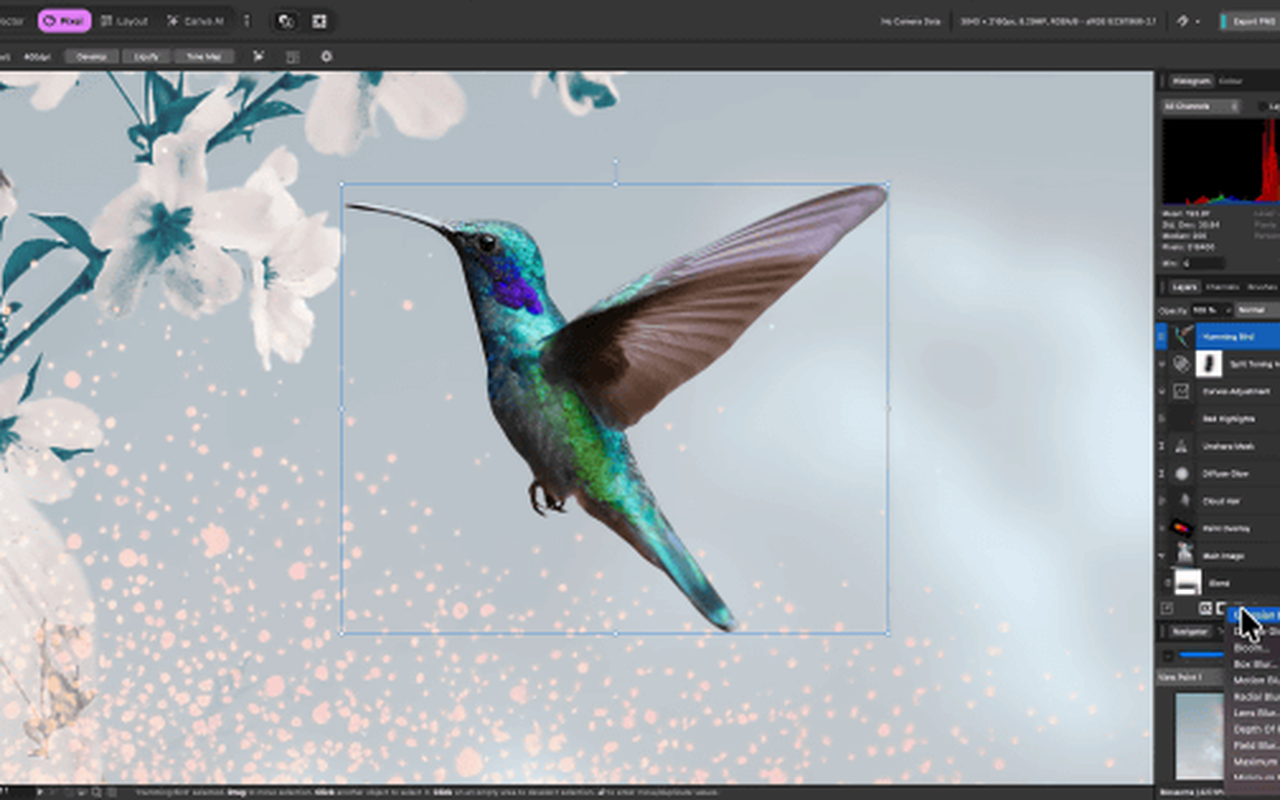
This is the story that changed the whole category. Canva acquired Serif, the company behind Affinity, in 2024 in a deal reported at around $380 million. Then in October 2025 it merged Affinity Photo, Designer, and Publisher into one unified app and made it completely free for individuals. You sign in with a free Canva account, and you get a professional desktop editor that used to cost $70 per app. No subscription, no trial clock ticking.
Affinity is a real desktop program for Windows and Mac. It handles layers, masks, and non-destructive adjustments the way Photoshop does, opens PSD files with solid fidelity, and develops RAW files in its own dedicated workspace. Print users get proper CMYK support and the preflight checks that print shops actually care about. The layout feels familiar to anyone coming from Photoshop, so the re-learning curve is days, not weeks.
The honest catch is the ownership question. Affinity is free, but it is owned by Canva, and the design community is watching to see whether paywalls creep in over time. For now, though, this is the closest thing to a full Photoshop replacement you can get, and it costs nothing.
Best for: photographers, designers, and anyone who wants professional desktop editing without a subscription.
What we like about Affinity
- Panorama stitching, HDR merge and focus stacking ship inside the free app
- Export Persona builds image slices for web and app work without plugins
- Runs fully offline, no browser tab eating your RAM
- Handles photo, vector and layout work in one window
What could be better
- AI generative tools need a paid Canva plan
- iPad app still listed as coming soon
- Shortcuts differ slightly from Photoshop’s, expect a week of re-learning
- Community templates and presets lag behind Photoshop’s library
Activate Affinity’s free license before you cancel Photoshop. The sign-in takes two minutes, and you will want both tools open side by side while you move your workflow over.
2. Photopea: Best Free Photoshop Alternative in a Browser
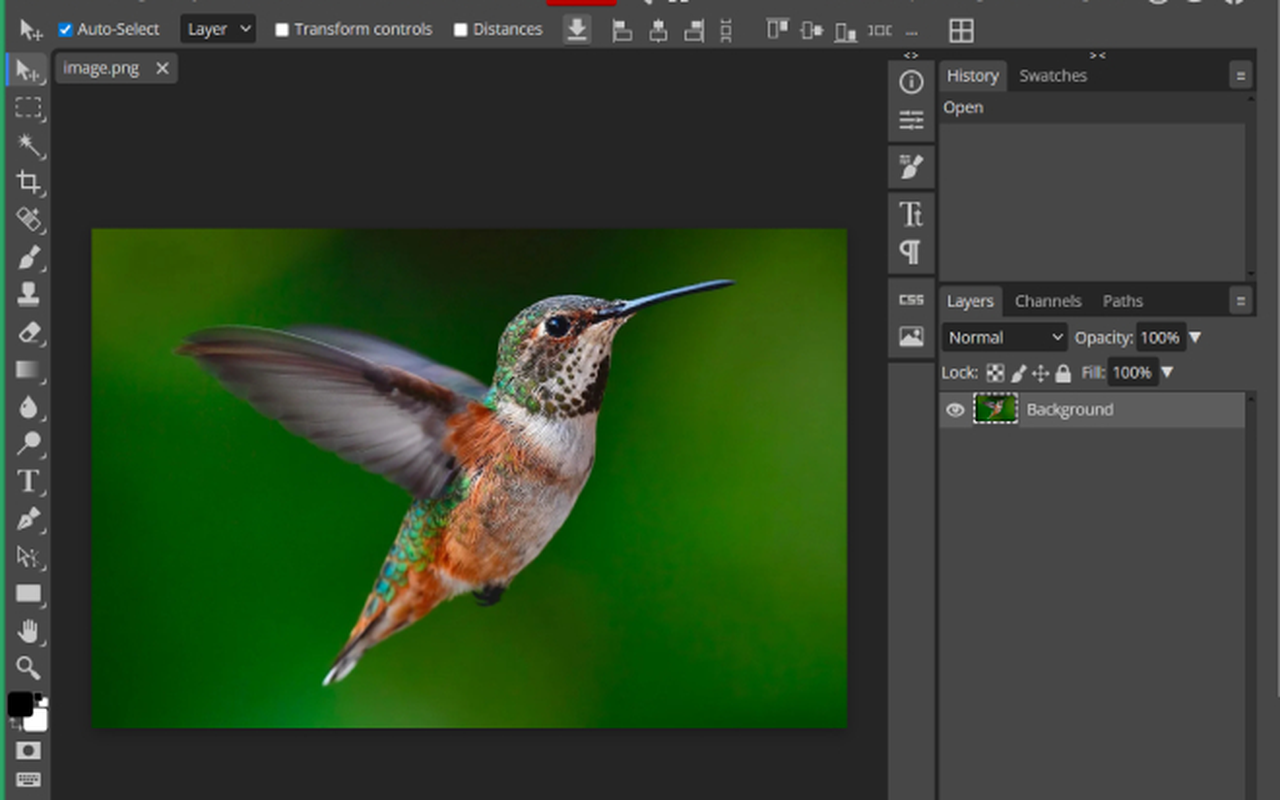
If Affinity is the best desktop answer, Photopea is the best answer when you cannot install anything. It looks and behaves like Photoshop, runs entirely in your browser, and opens PSD files with layers, smart objects, and effects largely intact. A designer sent you a file and you are on someone else’s laptop? Open a tab and get to work.
Designers pass files back and forth in half a dozen formats, and Photopea handles most of them, which makes it the universal translator of the design world. The layer panel, the tools, even the keyboard shortcuts mirror Photoshop closely enough that most users feel at home within an hour. It is free if you accept ads, and an ad-free Premium costs about $5 a month.
It lives or dies by your browser, so very large files can chug on older machines. But as a free Photoshop safety net that works on any computer with a browser, nothing else comes close.
Best for: quick PSD edits, Chromebooks, school computers, and anyone who needs Photoshop’s layout with zero install.
What we like about Photopea
- Runs on Chromebooks and school computers, nothing to install
- Opens Illustrator, XD, Sketch and Figma files in one browser tab
- Built-in actions automate repetitive export jobs
What could be better
- Ads sit in the side panel on the free tier
- No CMYK mode for print separations
- Photoshop plugins and scripts will not run here
3. GIMP: Best Open Source Photoshop Alternative
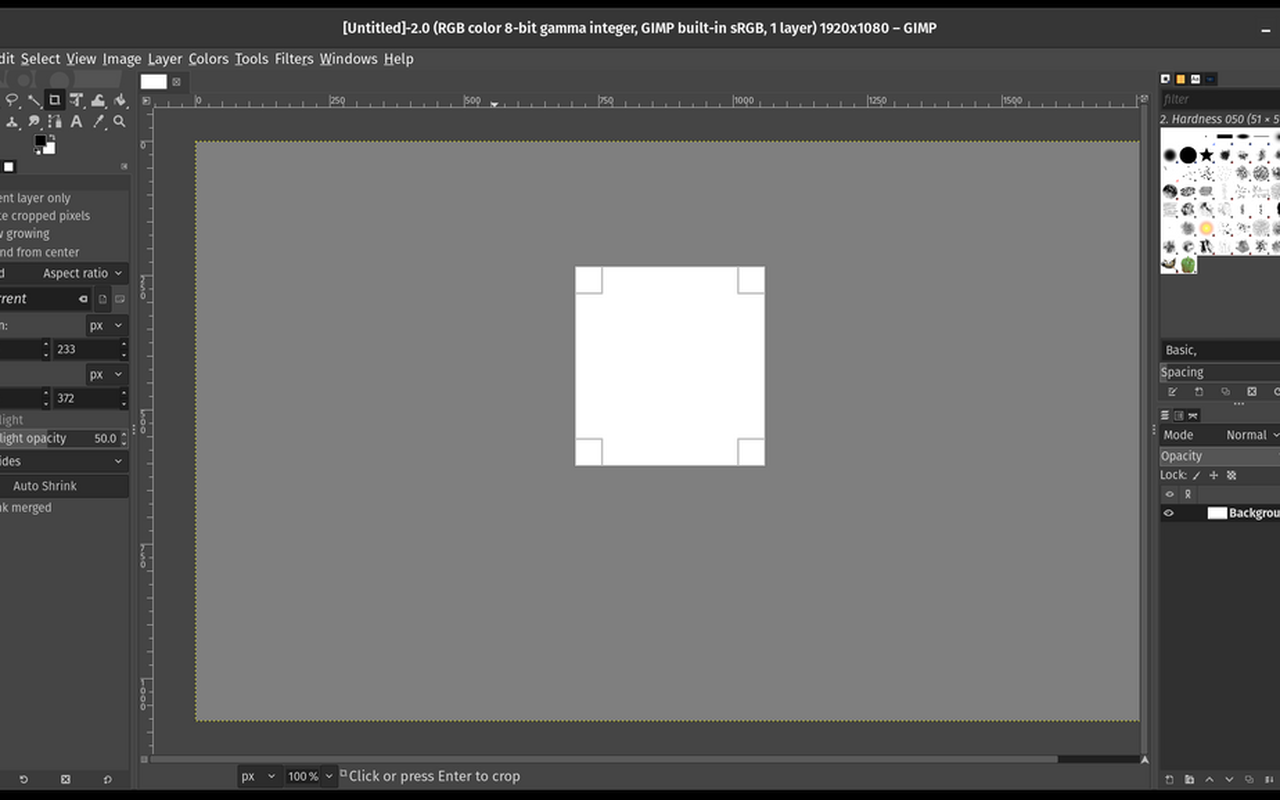
GIMP has been the free Photoshop alternative for longer than some of its users have been alive, and it is still going strong. It is completely free and open source under the GPL, which means no account, no ads, no upsell screens. It runs on Windows, Mac, and Linux, and you can use it for commercial work without paying a cent.
Under the hood it is serious software: layers, masks, curves, perspective tools, and a plugin ecosystem that has grown for decades. Advanced users extend it in ways no browser tool can match, and the price is unbeatable because there is no price.
The price of freedom is friction. GIMP has its own way of doing things, so Photoshop users spend real time re-learning where everything lives. Its interface still feels utilitarian next to modern editors. But if you want a tool that is free forever and answers to nobody, this is the one.
Best for: open source fans, Linux users, and anyone who refuses subscriptions on principle.
What we like about GIMP
- G’MIC plugin adds hundreds of extra filters at once
- Python scripting automates whole batch workflows
- Interface docks, themes and shortcuts bend to your workflow
What could be better
- Print CMYK support arrives via plugins, not built in
- Menu names follow GIMP’s own vocabulary
- Major releases arrive slowly
- PSD text layers lose editability on import
4. Krita: Best Photoshop Alternative for Digital Painting
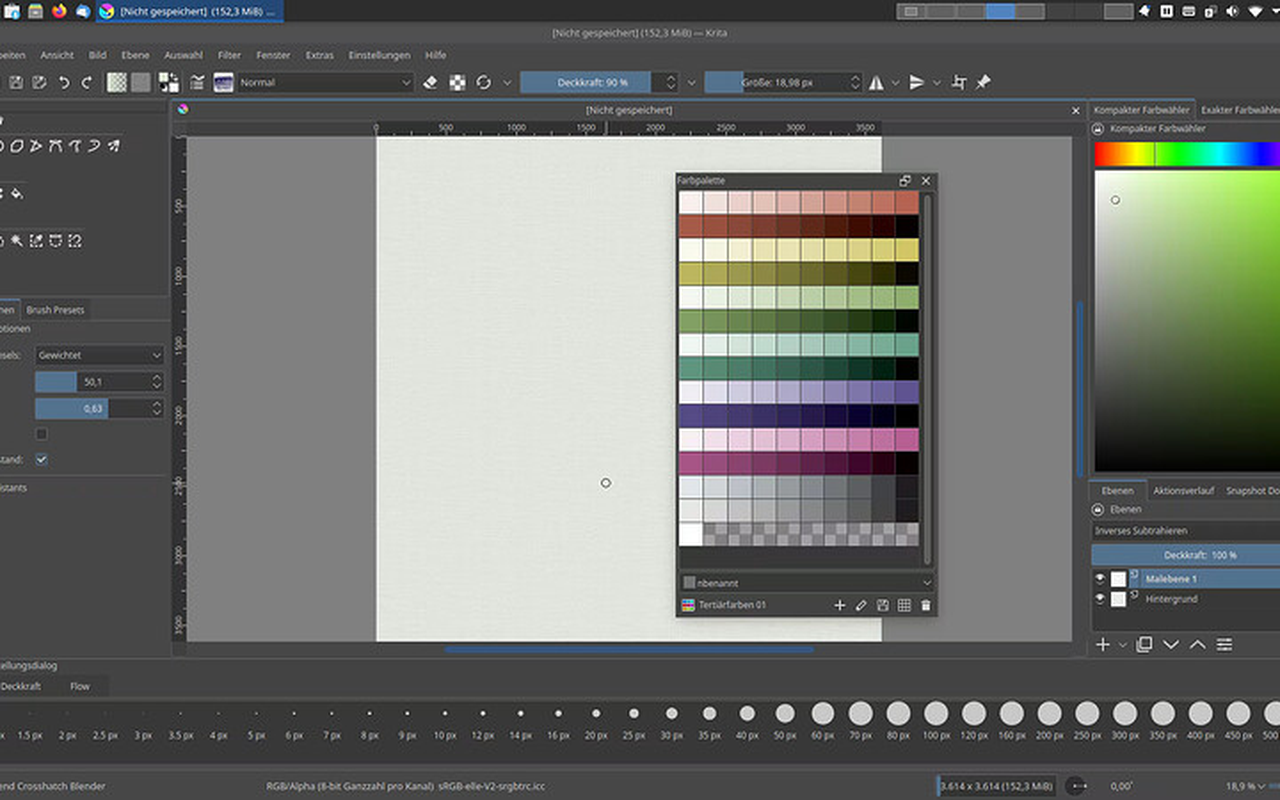
Here is where the “one tool replaces Photoshop” idea breaks down in a useful way. If your Photoshop work is mostly drawing and painting, Krita beats the general editors on this list. It is free and open source, built by artists for artists, and its brush engine is the best you will find at any price.
Krita was built for drawing, and everything about it shows that. Its photo editing features are basic, and its text and layout tools will frustrate anyone making marketing materials. But for illustration, concept art, and comics, many artists consider it the better tool, full stop.
Best for: illustrators, concept artists, comic creators, and anyone who draws with a tablet.
What we like about Krita
- Brush stabilizers smooth shaky tablet strokes
- Built-in animation timeline for frame-by-frame work
- Nine brush engines tuned for painting, not filters
What could be better
- No real RAW photo workflow
- Vector tools lag behind dedicated apps
- Some PSD effects flatten on import
- Community tutorials lean toward painting, not photo editing
5. Pixlr: Best for Quick AI Edits in a Browser
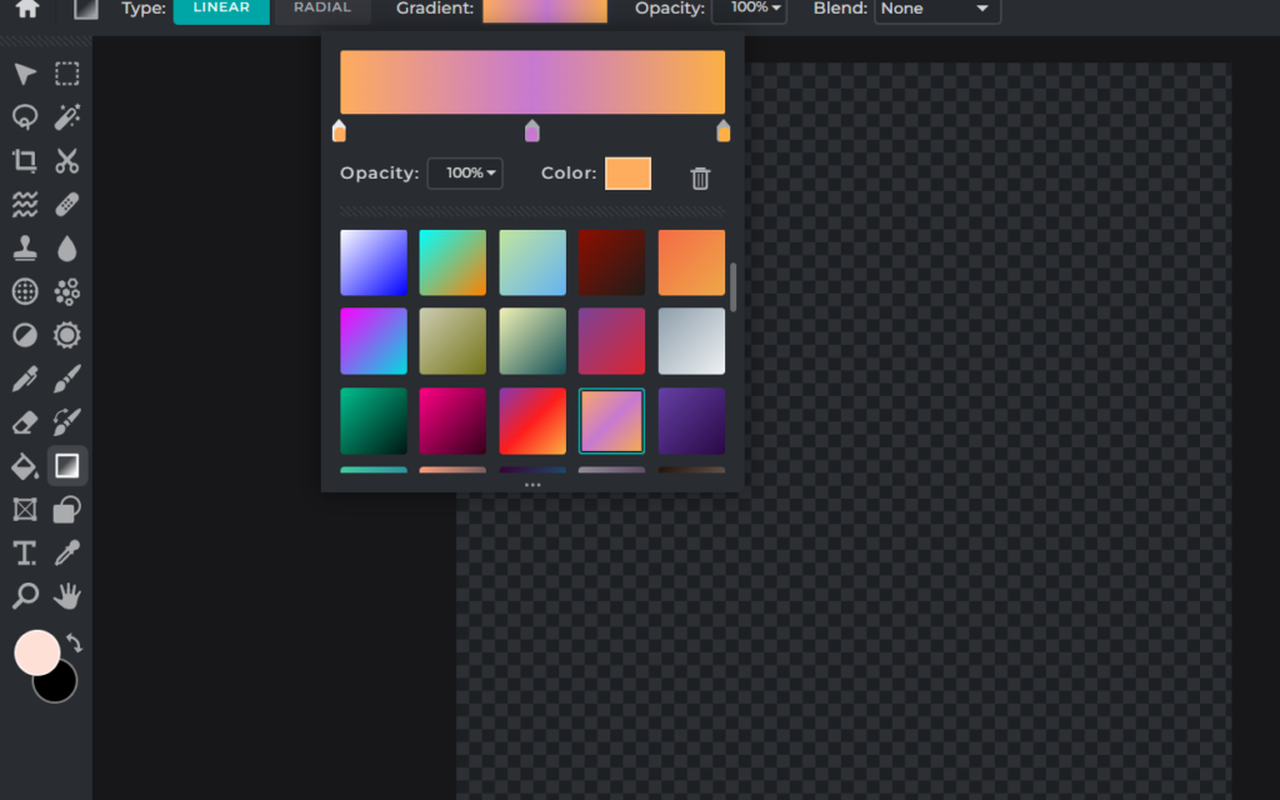
Pixlr sits between Photopea and Canva. It is a proper photo editor that runs in your browser, with layers and retouching tools, plus a growing set of AI features. It is easier to learn than Photopea, friendlier to beginners, and far cheaper than most rivals.
The free plan covers everyday edits, and paid plans start at only a couple of dollars a month, which makes it one of the cheapest ways to get AI editing tools without a big subscription. The interface is clean, the learning curve is gentle, and it handles the jobs most people actually do: retouching photos, removing backgrounds, adding text to images.
It is not where you do serious compositing work, and the free tier carries limits on the AI tools. But if your Photoshop use was mostly quick photo edits with a bit of text on top, Pixlr covers that work for very little money.
Best for: bloggers, small sellers, and beginners who want AI tools without Adobe prices.
What we like about Pixlr
- Generative Fill and background remover live in the browser
- Auto face retouch slider for quick portraits
- Mobile apps share the same account
What could be better
- Free saves capped each day
- Ads on the free tier
- AI credits refill slowly without a plan
- No layered PSD round-trip to Photoshop
6. Canva: Best Photoshop Alternative for Non-Designers
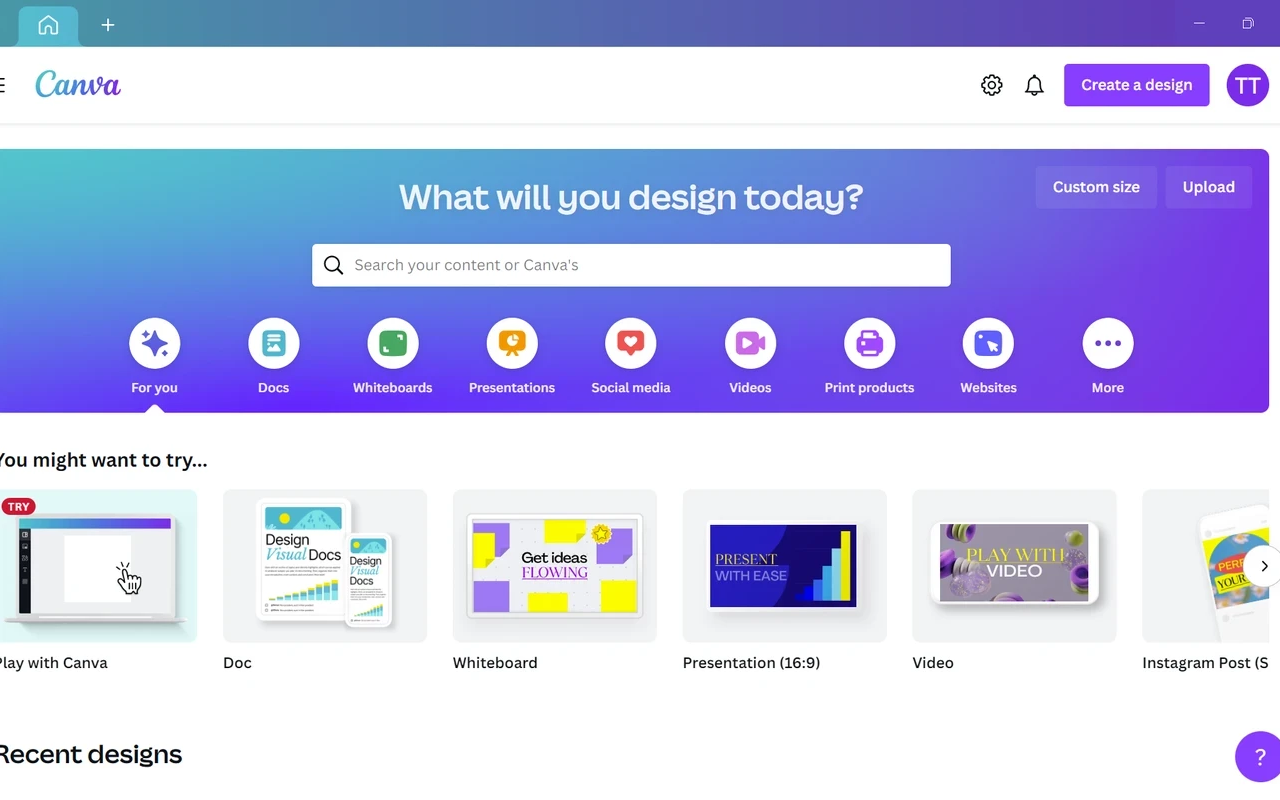
Canva is not a Photoshop replacement in the technical sense. It does not do serious photo retouching or layered compositing. But here is the thing: for millions of people, their “Photoshop work” was never photo editing at all. It was making social posts, presentations, flyers, and thumbnails. For that job, Canva is faster than Photoshop ever was.
The drag-and-drop editor and the collaboration features make it the easiest tool on this list to learn. The free plan is generous for casual use, and Pro at $120 a year unlocks the full asset library and brand tools. Teams like it because everyone can design on-brand without training.
If you need real photo manipulation, look elsewhere on this list. But if most of your Photoshop sessions ended with a social media graphic, Canva is the switch that saves you the most time. We go deeper on the design-tool side of this in our guide to Canva alternatives.
Best for: marketers, small business owners, and anyone whose design work is social and presentation graphics.
What we like about Canva
- Over 600,000 templates across every format
- Magic Studio AI generates images and designs
- Real-time comments make client feedback painless
- Brand Kit locks colors and fonts for teams
What could be better
- No CMYK preview for print work
- Premium assets watermark free exports
- Free plan caps AI generations
- PSD import is partial at best
7. Luminar Neo: Best Paid AI Photo Editor
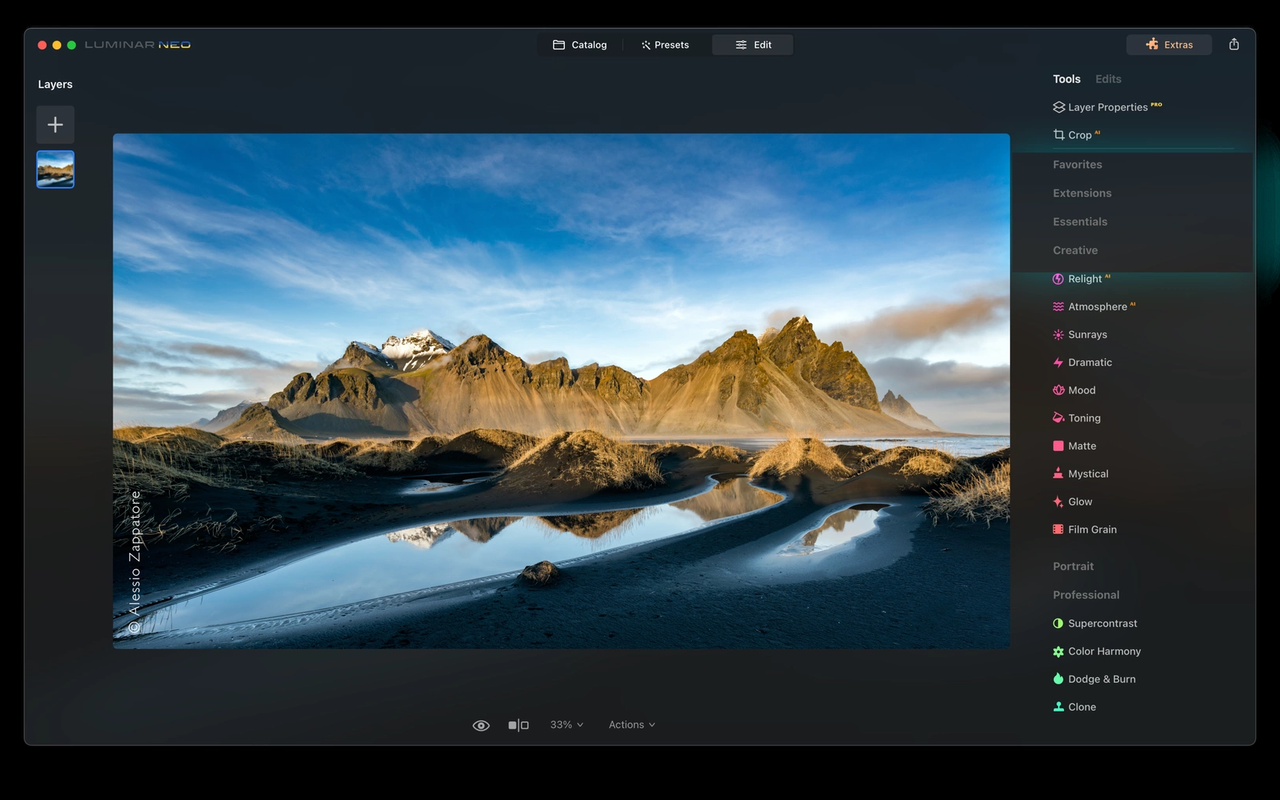
Luminar Neo takes the opposite approach to the tools above. Instead of asking you to learn layers and masks, it asks you to move sliders and let AI do the masking. Portraits get cleaner skin and better light. Dull landscapes turn dramatic. The whole philosophy is speed: results in minutes that would take a Photoshop user an hour of manual work.
It supports RAW files and works as a standalone app on Windows and Mac. Skylum sells it on yearly plans starting around $59, with a lifetime option for people who are done with subscriptions entirely.
This is not a general design tool. Photoshop veterans may find the AI-first approach limiting. But for photographers who want beautiful results without learning Photoshop’s deeper machinery, it is the strongest paid pick on this list.
Best for: photographers and hobbyists who want AI to do the heavy lifting.
What we like about Luminar Neo
- Sky AI and Relight AI in one slider each
- Works as a plugin inside Lightroom and Photoshop
- Extension packs add HDR, panorama and focus stacking
What could be better
- Windows and Mac only
- Library tools lighter than Lightroom’s
- Extensions cost extra on top of the license
- No vector or layout tools at all
8. Pixelmator Pro: Best Photoshop Alternative for Mac Users
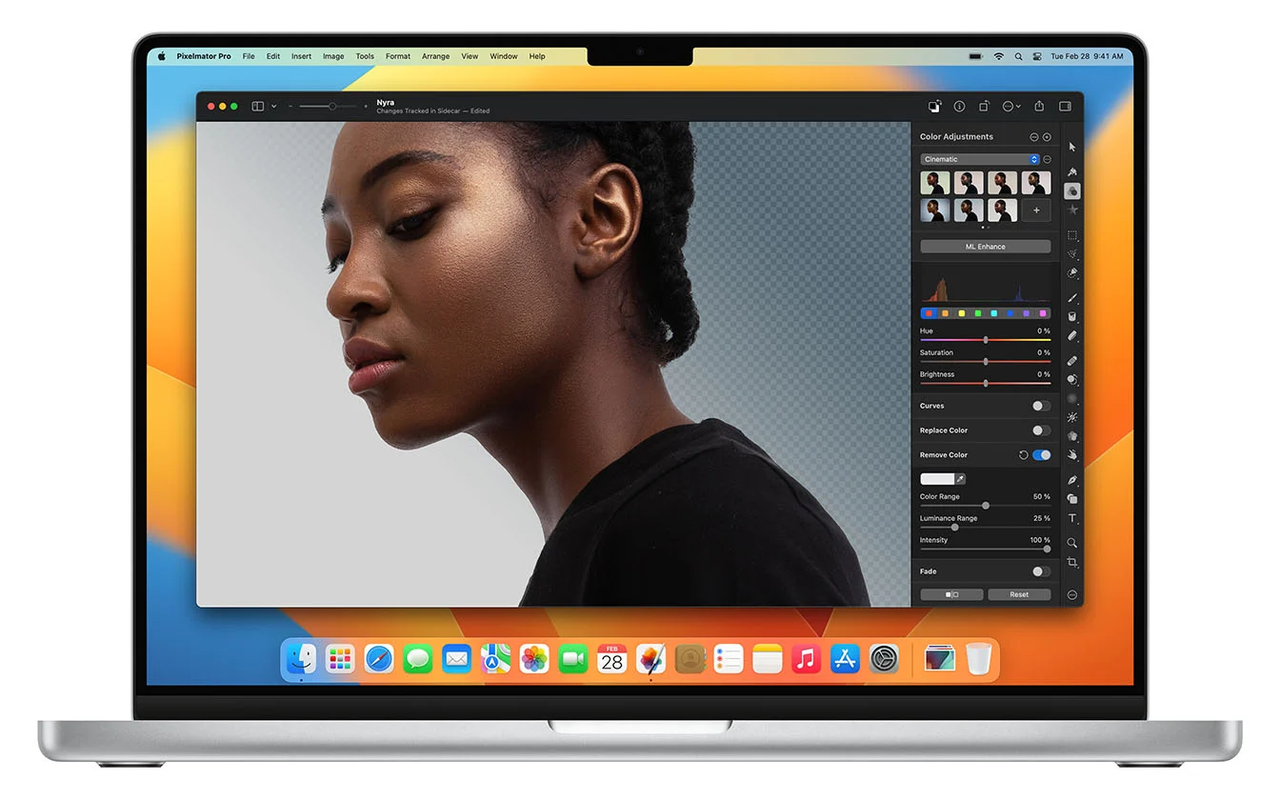
If you are on a Mac, this might be the best value in professional image editing. Pixelmator Pro is a polished, Mac-native editor that Apple itself acquired in early 2025, folding it into its pro apps family. It is fast, it looks like it belongs on macOS, and it costs $49.99 once. No subscription, ever.
The editor covers the core Photoshop jobs: layered editing, retouching, and color adjustments, with solid file-format support. Its AI tools, like automatic background removal, run on Apple’s own machine learning frameworks, which is why they feel instant on modern Macs. It even handles basic video and vector work.
The one hard limit is the platform. There is no Windows version and there never will be. If you are all-in on Apple hardware, that does not matter. For everyone else, pick a different tool on this list.
Best for: Mac and iPad users who want pro editing for a single payment.
What we like about Pixelmator Pro
- ML Super Resolution upscales images on device
- Built on macOS Metal for fast rendering
- Opens PSD and RAW files natively
What could be better
- Smaller third-party plugin world
- Panorama stitching missing
- Vector tools stay minimal
- Cloud collaboration features are minimal
9. Fotor: Best for One-Tap Quick Edits
Fotor is the tool for people who open an editor, want the photo fixed, and want to be done in two minutes. Its one-tap enhancement tools clean up lighting, color, and sharpness automatically, and its AI features handle background removal, object erasing, and quick portrait touch-ups without any manual masking.
Beyond single photos, Fotor includes collage makers, design templates, and social media sizing, which makes it a decent lightweight package for bloggers and small shops. The free plan covers the basics, and Pro starts at around $4 a month on yearly billing.
Power users will outgrow it. Fine control is limited compared to the editors above, and the free plan has its limits. But as the fastest route from a mediocre photo to a presentable one, it earns its place.
Best for: bloggers, small sellers, and anyone who wants quick results with zero learning curve.
What we like about Fotor
- Batch editor processes hundreds of photos at once
- AI headshot and outfit generator built in
- Print products ship from inside the app
What could be better
- Daily AI credits cap on the free plan
- Export size limited without Pro
- Some templates lock after you edit them
- Mobile app pushes the subscription hard
Also worth a look: darktable (free RAW workflow for photographers), Capture One (studio-grade RAW and tethered shooting, from about $18 a month), Corel PaintShop Pro (Windows-only one-time purchase for photographers), and DxO PhotoLab (best-in-class noise reduction, $229 one-time). None of them beats the nine picks above at their best jobs, but each has loyal users for a reason.
How the 9 Editors Compare at a Glance
| Tool | Price | Best for | Platform | Opens PSD |
|---|---|---|---|---|
| Affinity | Free | Professional editing, full replacement | Windows, Mac | Yes |
| Photopea | Free / ~$5/mo | Browser PSD editing | Any browser | Yes, layered |
| GIMP | Free | Open source power editing | Windows, Mac, Linux | Yes, basic |
| Krita | Free | Digital painting | Windows, Mac, Linux | Yes, basic |
| Pixlr | Free / ~$2/mo | Quick browser edits with AI | Any browser | Partial |
| Canva | Free / $120/yr | Social and marketing graphics | Browser, apps | Partial |
| Luminar Neo | ~$59/yr or lifetime | AI photo editing | Windows, Mac | No |
| Pixelmator Pro | $49.99 one-time | Mac photo editing | Mac, iPad | Yes |
| Fotor | Free / ~$4/mo | One-tap quick edits | Browser, apps | No |
What a Switch Really Costs Your Team
Let us do the math Photoshop hopes you skip. A single Photoshop subscription at $22.99 a month is about $276 a year, every year, forever. The full Creative Cloud plan at $69.99 a month is about $840 a year. A five-person team on the full plan burns over $4,000 a year, often for people who open Photoshop twice a month.
Now compare the switches. Affinity, Photopea, GIMP, and Krita cost $0. Pixelmator Pro costs $49.99 once, which pays for itself in about nine weeks against a Photoshop subscription. Luminar Neo’s lifetime option ends the billing cycle permanently. Even the paid plans here are a fraction of Adobe’s: Pixlr from about $2 a month, Fotor from about $4, Canva Pro at $120 a year.
The smartest setup we see in practice is a hybrid one. Put your heavy editors on Affinity or Photopea for free, give the painters Krita, and keep one Canva Pro seat for the social graphics. Most small teams cut their design software bill by 80 percent or more, and the tools they end up with are often faster for the jobs they actually do.
How to Choose the Right Photoshop Alternative
Still torn? Match the tool to the job.
- You want the closest full replacement, free: Affinity.
- You need to open a PSD right now, in a browser: Photopea.
- You refuse subscriptions on principle: GIMP, fully open source.
- You mainly draw or paint: Krita, and do not look back.
- You want quick edits with AI in a browser: Pixlr or Fotor.
- Your “Photoshop work” is social graphics: Canva.
- You are a photographer who hates manual masking: Luminar Neo.
- You are on a Mac and want pro tools for one payment: Pixelmator Pro.
Before You Cancel Photoshop: A 5-Minute Exit Checklist
Switching tools is easy. Losing your work is not. Run through this before you cancel.
- Export your important PSDs with layers intact, and save flattened copies as TIFF or PNG as a fallback.
- Export your brushes, actions, and presets. Photoshop’s cloud sync will not hand them to your new tool.
- Download your fonts and note which ones were Adobe Fonts, because those stop working when the subscription ends.
- Check your Creative Cloud storage. The free tier shrinks after cancellation, so move big files out first.
- Cancel at the end of your billing cycle. Adobe’s early termination fees on annual plans surprise people every year.
Final Thoughts
Photoshop earned its place by being the best at everything. But “everything” stopped being free of subscription lock-in, and in 2026 the alternatives are no longer compromises. Affinity gives you professional desktop editing for nothing. Photopea opens your PSDs in a browser tab. Krita out-paints Photoshop for artists. The right question is not whether you can replace Photoshop. It is which job you actually need it for, and how much you are willing to keep paying for the rest.
The strongest free Photoshop alternative by a wide margin
If you want one answer, make it Affinity: professional, offline, and subscription-free. Pair it with Photopea for browser emergencies and you have covered almost everything Photoshop did.
This kind of research, applied to your growth
If you run a SaaS business, SaaS Harvest can do this kind of digging in your market and turn it into search traffic that signs up.
Get a Free SEO AuditSee our SaaS SEO servicesFAQs
What is the best free Photoshop alternative overall?
Affinity. Since October 2025 it is completely free for individuals, and it is the closest thing to a full professional Photoshop replacement at any price, let alone free.
Is Affinity really free now, or is that just a trial?
It is a permanent change, not a trial. Canva, which owns Serif, made the unified Affinity app free for individual use starting October 30, 2025. You sign in with a free Canva account. Some advanced AI features need a paid Canva plan, but the core editor stays free.
Can Photopea open Photoshop PSD files?
Yes, and it does it better than any other free tool. It opens PSD files with layers, smart objects, and most effects intact, and it can save back to PSD format. That is its whole reason to exist.
Which Photoshop alternative is best for Mac users?
Pixelmator Pro. It is Mac and iPad only, built on Apple’s own graphics technology, and costs $49.99 once. Apple acquired the company in early 2025, so it is now part of Apple’s pro app family.
Can these tools completely replace Photoshop?
For most people, yes. If your work is photo retouching, compositing, illustration, or social graphics, the tools above cover it. Photoshop still wins for deep plugin ecosystems, specific Adobe workflows, and exact file compatibility with other Adobe apps. Match the tool to your job and you will not miss it.
What is the closest Photoshop alternative for digital painting?
Krita, by a clear margin. Its brush engine is built for artists, and many illustrators consider it better than Photoshop for drawing.
Do any Photoshop alternatives work on a Chromebook?
Yes. Photopea and Pixlr run entirely in the browser, so they work on Chromebooks, tablets, and school computers with nothing to install.
Which one-time purchase Photoshop alternative is best?
Pixelmator Pro at $49.99 for Mac users, or Luminar Neo’s lifetime plan for photographers who want AI-driven editing. Both end the subscription cycle permanently.