
Slack vs Teams is the team chat decision most growing companies get wrong, and they usually get it wrong for a simple reason. They compare feature lists, when the real question is where their work already lives. If your team spends its day in chat, jumping between tools, talking to outside partners, and searching old decisions, you probably want Slack. If your team already pays for Microsoft 365, runs its calendar in Outlook, edits documents in Word and Excel, and holds structured meetings all week, you probably want Microsoft Teams. If you are starting from scratch, with no suite loyalty and a small budget, the answer is less obvious, and this guide will help you work through it with real numbers, not slogans.
That short answer needs one qualification before you spend money on it. Both tools do the basics well in 2026. Both give you channels, direct messages, file sharing, video calls, search, and mobile apps that work. Neither one will fix a team that has no habits around naming channels, answering threads, or writing decisions down. What separates them is the shape of the workday each one encourages. Slack encourages a fast, chat-first day, where a question gets asked in a channel and answered in a thread, and the answer stays searchable for the next person. Teams encourages a meeting-first, document-first day, where chat sits next to a calendar invite and a shared file, and the meeting is often the main event. Pick the shape that matches your team, and the smaller feature differences matter less than people think.
We compared the official Slack and Microsoft pricing and product pages, checked the current plans and limits on each vendor page, and then asked what each difference means for a real team: a ten person startup, a fifty person agency, and a larger company with compliance rules to follow. Prices below are US list prices checked against vendor pricing pages. Where a vendor does not publish a figure on its pricing page, we say so, instead of printing a number from a review site and pretending it is official. That discipline matters here more than usual, because Teams pricing in particular has changed with unbundling, and old articles still show prices that no longer apply.
Quick Picks: The Short Version
Short on time? Start here.
Slack
The strongest chat-first workspace, with the most mature threading, search, and third-party app depth
Price Free, then Pro from $7.25 per user per month billed annually
Free plan available, 90 days of message history
Microsoft Teams
Chat, meetings, and Office documents in one place, at little or no extra cost if you already pay for Microsoft 365
Price Free, then Teams Essentials from $4.00 per user per month billed annually
Free plan available for personal and small group use
Slack Pro
Unlimited message history, unlimited app integrations, and group huddles for teams that live in channels
Price $7.25 per user per month billed annually, or $8.75 billed monthly
No free upgrade path beyond the free plan, paid plan required
Slack vs Teams at a Glance
| Feature | Slack | Microsoft Teams |
|---|---|---|
| Built for | Chat-first teams on a mixed SaaS stack | Microsoft 365 organizations that live in meetings and Office documents |
| Free plan | Yes, 90 days of message history, up to 10 apps, 1:1 huddles | Yes, for personal and small group use |
| Entry paid plan | Pro, $7.25 per user per month billed annually | Teams Essentials, $4.00 per user per month billed annually |
| Next step up | Business+, $15 per user per month billed annually | Microsoft 365 Business Basic, $7.00 per user per month billed annually |
| Top business tier listed | Enterprise+, contact sales for pricing | Microsoft 365 Business Standard with Copilot, $23.50 per user per month billed annually |
| Message history | 90 days on free, unlimited on paid plans | Admin retention policies decide, no hard cap published on the pricing page |
| App directory | Over 2,600 apps | Deep Microsoft 365 apps, plus third-party apps for Teams |
| Meetings on business plans | Huddles for quick group calls, not a full scheduled meeting platform | Up to 300 participants, up to 30 hours, with recordings and transcripts |
| Storage on entry paid plans | Plan based, see the Slack pricing page for the current figure | 10 GB per user on Essentials, 1 TB per user on Business Basic |
| AI on paid plans | AI summaries and search features included on paid plans, fuller AI on Business+ and Enterprise+ | Copilot Chat included in some form on business plans, full Microsoft 365 Copilot as a paid add-on |
| External collaboration | Slack Connect channels with outside organizations, up to 250 orgs on paid plans | Guest access and federation with outside organizations |
| Owner | Salesforce | Microsoft |
How We Compared Slack and Teams
Team chat comparisons often fail because they list features without asking who pays, who administers, and who actually uses the tool every day. We started with a different set of questions. First, what does each plan cost for a team of ten, twenty five, and fifty people, on annual billing, using only the prices on the vendor pages? Second, what happens when a new hire joins, when someone leaves, when a client needs access, and when a manager needs to find a decision from six months ago? Third, what breaks first at scale: the chat, the meetings, the file storage, or the admin controls? Those questions produce a more useful comparison than a checklist of icons, because they match the moments where teams actually feel the difference.
We also kept the two products in their natural contexts. Slack is a standalone product. You buy it because you want chat, and you connect the rest of your stack to it. Teams is a component of a suite. Most buyers do not shop for Teams alone. They already have Microsoft 365, or they are about to buy it, and Teams arrives as part of that purchase. Judging Teams as if it were a standalone chat app misses the point, and judging Slack as if it should replace Outlook and Word misses the point in the other direction. This guide scores each tool on the job it was built for, and then helps you decide which job your team actually has.
Slack in Focus
Best for: teams whose work happens in chat, especially engineering, product, support, and agency teams that use many different tools and talk to outside partners every day. See the official Slack site for current product details.
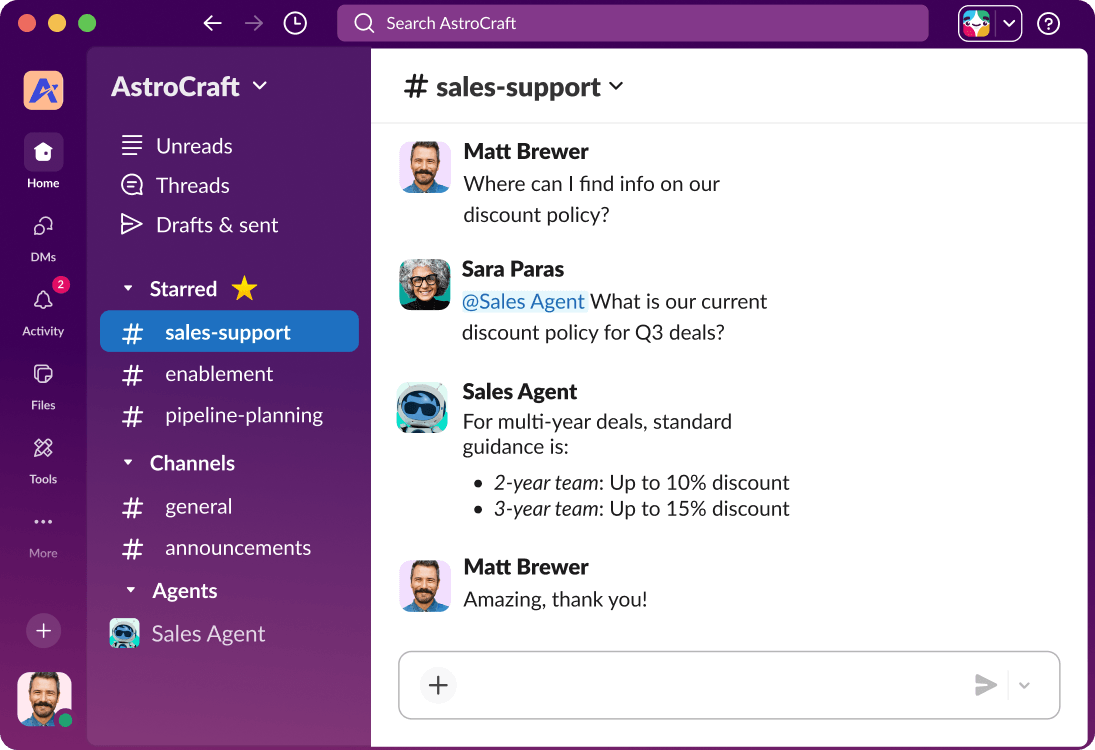
Slack organizes work into channels, and that simple idea still explains most of its appeal. A channel is a room for one topic, one project, one client, or one team. Anyone in the channel can read the history, catch up on a thread, and find the decision later. Direct messages handle private conversations. Threads keep replies attached to the original message, so a busy channel does not turn into a pile of disconnected comments. For a team that answers the same questions repeatedly, that structure is a form of memory. A new hire can search a channel and learn how a decision was made, without asking three people and waiting for replies.
The day to day feel of Slack is fast. Messages send instantly, reactions acknowledge a message without a reply, and mentions pull the right person into a conversation. Huddles give teams a lightweight way to talk without scheduling a formal meeting. You start a huddle in a channel, people join with audio or video, you share a screen, you talk for five minutes, and you leave. That suits teams that need quick answers and hate calendar Tetris. It does not suit teams that need a formal agenda, a recording for compliance, breakout rooms for training, or a webinar for a thousand people. Slack knows that gap, and it has not tried to close it by building a full meeting platform. It expects meeting heavy teams to pair it with a dedicated video tool.
Search is where Slack earns its price for many teams. Paid plans keep every message and file searchable, with no time limit, and search understands the structure of a workspace: who said it, in which channel, with which file attached. A support team can find the last time a bug was discussed. A sales team can find the thread where a client approved a scope change. An engineering team can find the incident channel from three months ago and see exactly what was tried. When search works this well, chat stops being a stream that disappears and starts being a record. That record is the main reason teams stay on Slack even when a cheaper chat tool appears, because moving means leaving the record behind, or paying to migrate it.
Slack Connect is the other feature that changes how outside work feels. Instead of emailing a client or a vendor, you share a channel with their organization. Both sides keep their own workspace, their own admin controls, and their own tools, and the shared channel works like any other channel. Paid plans support group external messages and dedicated channels with up to 250 organizations. For agencies, consultancies, and support teams, that is a daily workflow improvement. Email threads get lost. Shared channels stay visible, searchable, and tied to the project. The catch is that both sides need to be comfortable in Slack. If your clients live in Teams, a shared Slack channel adds friction instead of removing it.
Slack also works as a hub for a mixed software stack. The app directory lists over 2,600 apps, from Salesforce and Jira to Google Drive and ChatGPT, and paid plans allow unlimited integrations. A notification from a code repository, a deal update from a CRM, or a ticket update from a support tool can land in the channel where the team already works. Workflow Builder lets non technical staff automate routine steps, like routing a request form to the right channel or reminding a team about a weekly update, without writing code. That hub role is Slack’s strategic answer to Teams. Teams is the hub for the Microsoft stack. Slack wants to be the hub for everything else, and for teams with a mixed stack, that pitch lands.
What we like about Slack
- Audio and video clips let people share a quick screen recording or voice note inside a channel, which suits async teams across time zones
- Custom sidebar sections let each person group channels by project or team, so a large workspace stays navigable without admin help
- Ready to use workflow templates give small teams a starting point for approvals and intake, and admins on the top tier can publish company templates
What could be better
- Enterprise Key Management, which lets a company control its own encryption keys, is an add-on on the top tier, not part of the standard plan
- Multiple SAML configurations, for companies with more than one identity provider, are reserved for the top tier
- Information barriers, which block direct messages between defined groups, are reserved for the top tier, so regulated teams may need the most expensive plan
Microsoft Teams in Focus
Best for: organizations already standardized on Microsoft 365, especially companies that run scheduled meetings, co-author Office documents, and manage email and calendars in Outlook. See the official Microsoft Teams plans page for current plan details.

Teams organizes work into teams and channels, with chat, files, and meetings in one window. A team might be a department or a project group. Inside it, channels split the work by topic. Files for a channel live in SharePoint, which means a document shared in chat is also a SharePoint file, with version history and permissions that IT already understands. That design feels heavier than Slack at first. There are more tabs, more settings, and more places to look. It pays off when the work itself is document heavy, because the chat, the file, and the meeting about the file all sit in one place, instead of spread across three apps.
Meetings are the center of Teams, and the gap with Slack here is large. Business plans support meetings of up to 300 participants lasting up to 30 hours, with recordings, transcripts, and live captions. Scheduled meetings, breakout rooms, and screen sharing are built in, and webinar hosting with registration and reporting is included on the higher business plan. A company that runs training sessions, all hands meetings, client presentations, and weekly team meetings can run all of them inside Teams, without a separate video tool. That consolidation is the strongest financial argument for Teams. One subscription covers chat, meetings, email, documents, and storage, and the meeting tool is not a compromise.
Document collaboration is the second pillar. A Word, Excel, or PowerPoint file shared in Teams opens for co-authoring, with several people editing at once and changes appearing in real time. Comments, mentions, and version history follow the file, and the file stays in OneDrive or SharePoint, where search and permissions work across the whole suite. For a team that writes proposals, builds budgets, or reviews contracts together, that loop is hard to beat. Slack can link to those same files, and it can show previews, but the editing still happens elsewhere. In Teams, the chat and the document are part of one workflow, and people stop asking which version is current, because there is one file, in one place, with a clear history.
Teams also inherits Microsoft’s identity and admin world. Sign in, device policy, and access control run through Entra ID, and the business plans include core identity and access management for up to 300 users. For an IT team that already manages Microsoft accounts, adding Teams means adding no new identity system, no new password policy, and no new vendor to audit. For a small team without IT staff, that same depth can feel like overhead. The admin center has many settings, and finding the right one takes time. The tradeoff is real: Teams gives large organizations control they need, and it asks small teams to learn a system built for larger ones.
The pricing structure deserves attention, because it confuses buyers. Teams is sold as a standalone plan, Teams Essentials, and as part of Microsoft 365 plans, Business Basic and Business Standard. Since the unbundling changes, Microsoft also sells some suites without Teams, with Teams added back as a separate license. That means two companies can both say they have Business Basic and pay different amounts, depending on which variant they bought and when. Before you compare a Teams price with a Slack price, check your invoice. If Teams is already included in a suite you pay for, its marginal cost is zero, and no standalone chat tool can compete on price alone. If it is not included, add the Teams license to the suite price before you compare.
What we like about Microsoft Teams
- Immersive spaces and meeting avatars give large meetings a shared visual setting, which helps training sessions feel less like a grid of faces
- Appointment and staff scheduling through Bookings and Shifts sits inside the same suite, so frontline rotas and client bookings need no extra tool
- Over 250 integrated business apps are listed for Teams on the plans page, covering scheduling, planning, forms, and task apps alongside Office
What could be better
- Live captions on the entry Essentials plan are English only, while the higher business plans cover over 30 languages
- Webinar hosting with registration and reporting is listed for the higher business plan, not for Essentials or Business Basic, so event teams must step up a tier
- Full Copilot in the Office apps is an add-on on Business Basic, not part of the base plan, so the AI price is separate from the chat price
Pricing Deep Dive: What You Actually Pay
Slack pricing is simple to read and painful at scale. The free plan costs nothing and gives you 90 days of message history, up to 10 apps, 1:1 huddles, and 1:1 external messages. Pro costs $8.75 per user per month billed monthly, or $7.25 billed annually, and removes the history and app limits, adds group huddles and group external messages, and includes basic AI features like conversation summaries. Business+ costs $18 billed monthly, or $15 billed annually, and adds advanced AI, including AI search, daily recaps, and file summaries, plus stronger admin controls like SAML based single sign-on and SCIM user management. Enterprise+ is quoted by sales (contact sales for pricing) and adds enterprise search, multiple SAML configurations, and the deepest compliance controls. Prices are US list prices checked against vendor pricing pages, and Slack showed a 50 percent discount for three months on monthly Pro and Business+ plans on the day we checked, which lowers the first bill without changing the long term rate.
Do the math for a real team before you judge those numbers. Ten people on Slack Pro billed annually cost $72.50 per month, or $870 per year. Twenty five people cost $181.25 per month, or $2,175 per year. Fifty people cost $362.50 per month, or $4,350 per year. Business+ doubles those figures roughly, to $150, $375, and $750 per month for the same team sizes. Those totals buy chat alone. Email, documents, storage, and video meetings for large groups still need other tools, unless your team already pays for them separately. That is the core Slack cost problem. The per seat price looks modest, and the total grows with every hire, including people who read chat twice a day and would be fine with a lighter tool.
Teams pricing is harder to read and often cheaper in practice. Teams Essentials costs $4.00 per user per month billed annually, and gives you chat, calls, video meetings, file sharing, meeting recordings with transcripts, and 10 GB of cloud storage per user. Microsoft 365 Business Basic costs $7.00 per user per month billed annually, and adds web and mobile Office apps, custom business email, and 1 TB of storage per user. Microsoft 365 Business Standard with Copilot costs $23.50 per user per month billed annually, and adds desktop Office apps, Copilot in Word, Excel, PowerPoint, Outlook, and Teams, and more business apps. Teams Premium, an add-on at $10.00 per user per month billed annually, adds advanced meeting intelligence, personalization, and security features. Prices are US list prices checked against vendor pricing pages.
The comparison that matters is the total stack cost, not the chat price. A ten person team on Business Basic pays $70 per month for chat, meetings, email, Office web apps, and 1 TB of storage per user. The same team on Slack Pro pays $72.50 per month for chat alone, and still needs email and documents elsewhere. A fifty person team on Business Basic pays $350 per month for the full bundle, while Slack Pro alone costs $362.50. Slack only wins the price argument when a team already owns email and documents through another provider, like Google Workspace, and only needs chat. In that case, adding Teams means paying for a second suite, and Slack’s standalone price makes sense. Always price the whole stack, including the tools each chat app would replace, before you call one tool cheaper.
Before you sign, list every seat that will actually use the tool daily, and every seat that only needs to read announcements. Slack and Teams both charge per user, so a clean seat count, with guests and contractors handled through guest access where allowed, can save more than any discount negotiation.
Messaging and Channels: Where the Daily Work Happens
Slack channels feel like rooms, and that metaphor guides how teams use them. Public channels are open to the workspace. Private channels are invite only. Shared channels connect two organizations. Threads keep side conversations attached to the main message, and you can post a thread reply back to the channel when the whole group needs to see it. Reactions, mentions, and pinned messages handle the small coordination that would otherwise become meetings. The result is a workspace that rewards writing things down. A decision made in a channel stays in that channel, searchable, with the discussion around it. Teams that adopt that habit find Slack hard to leave, because the habit and the tool grow together.
Teams channels work similarly on the surface, with a few practical differences. Channels sit inside teams, which adds a layer of structure that helps large organizations and slows down small ones. A new project needs a team, or a channel inside an existing team, and permissions follow that structure. Threaded conversations in channels arrived later in Teams than in Slack, and the conventions are still settling. Some users reply in the channel, some start a new post, and the thread view takes a click to open. None of that blocks good work, but it changes the feel. Slack channels feel like a continuous conversation. Teams channels feel like a series of posts, each with its own replies, closer to a forum than a chat room.
Notifications decide whether a chat tool helps or harasses. Slack gives granular control per channel, with mute, mention only, and keyword alerts that ping you when a specific word appears. A developer can watch for a service name. A support lead can watch for a client name. A manager can mute a noisy channel and still catch mentions. Teams notifications are simpler, with per channel on or off and mention alerts, and they sit alongside Outlook email notifications, calendar reminders, and other Microsoft alerts. For a user who already lives in Outlook, that consolidation helps. For a user who wants fine control over chat noise, Slack’s granularity is a genuine advantage, and notification overload is one of the most common complaints about both tools when channels grow without rules.
Meetings and Video: The Clearest Gap Between Them
Meetings are where Teams pulls away, and the size of the gap surprises people who only use chat. Teams business plans support meetings of up to 300 participants lasting up to 30 hours, with recordings, transcripts, live captions, screen sharing, breakout rooms, and scheduled meetings. Higher plans add webinar hosting with registration and reporting. That covers the weekly team meeting, the client presentation, the training session, and the company all hands, all in one tool, with a recording that lands in the same place as the chat about it. A meeting heavy organization can drop a separate video subscription entirely, which changes the cost math in the pricing section above.
Slack huddles serve a different moment. A huddle is a quick, informal call inside a channel or direct message, closer to walking to a colleague’s desk than booking a conference room. Paid plans support group huddles, while the free plan limits huddles to 1:1 calls. Huddles include audio, video, and screen sharing, and they suit standups, quick unblocks, and pair working sessions. They do not replace scheduled meetings with agendas, large audiences, breakout rooms, and formal recordings. If your team runs many structured meetings, you will need a dedicated video tool alongside Slack, and that tool has its own cost and its own link to share. Our earlier comparison of Zoom alternatives covers what that second tool might look like, and why meeting capacity should be priced into any Slack decision.
File Sharing and Apps: Two Different Ideas of a Hub
Slack treats files as messages with attachments. You drop a file into a channel, people discuss it in a thread, and the file stays attached to that conversation. Google Drive, Dropbox, Box, and similar tools connect through the app directory, so a link unfurls with a preview and the discussion stays in Slack while the file lives in its home app. That model suits teams whose files already live in a mix of tools. Nobody has to move storage to adopt Slack. The tradeoff is fragmentation. The same project can have files in Drive, in Dropbox, in Slack uploads, and in a code repository, and finding the current version means knowing where to look. Our guide to Dropbox alternatives is useful here, because file storage decisions often sit beside the chat decision, and the two should be made together.
Teams treats files as SharePoint and OneDrive objects first, and chat attachments second. A file shared in a channel lands in the team’s SharePoint site, with version history, permissions, and co-authoring built in. A file shared in a direct message lands in OneDrive. That consistency helps IT and helps document heavy teams, because there is one storage system, one permission model, and one search index across chat files and suite files. The tradeoff is lock in. Moving files out of SharePoint later takes planning, and teams that already use Google Drive or Dropbox face a migration decision, not merely a chat decision. Storage amounts also differ sharply by plan: Essentials gives 10 GB per user, while Business Basic gives 1 TB per user, so the entry plan and the suite plan are not close on storage.
App integrations show the same philosophical split. Slack lists over 2,600 apps in its directory, and paid plans allow unlimited integrations. The breadth matters for teams with a long tail of tools: a monitoring alert, a CRM update, a design comment, a support ticket, all landing in the right channel. Teams integrates deeply with Microsoft apps first, and then with third-party apps through its own store and through Power Automate, Microsoft’s automation platform. The Microsoft integrations are deeper than Slack’s equivalents for Office files, calendars, and email, because they share identity, permissions, and data. The third-party tail is thinner, and some apps behave differently across channel types. For automation across many tools, connecting chat to the rest of the stack is where tools like those in our Zapier alternatives guide come in, and both Slack and Teams benefit from a clear automation plan before channels fill with noisy bot messages.
Search and AI: Finding Answers Fast
Search is the feature teams undervalue when they buy, and overvalue when they lose it. Slack search on paid plans covers every message and file, with no time limit, and it ranks results by channel, person, and recency in a way that usually surfaces the right thread quickly. Filters narrow by person, channel, date, and file type. AI search on Business+ and Enterprise+ goes further, answering a question from conversations and shared files, instead of returning a list of messages to read. For a team with years of history, that shift matters. A question like what did we agree with this client about delivery dates stops being a scroll through a channel and becomes an answer with sources.
Teams search spans chat, channels, files in SharePoint and OneDrive, and people, which gives it a wider net than Slack search, and a noisier one. A search can return a chat message, a document, a meeting recording, and a wiki page, all relevant in different ways. Copilot Chat, available in some form on business plans, adds AI chat grounded in work data, with writing help and agent access. Full Microsoft 365 Copilot, which brings Copilot deeply into Word, Excel, PowerPoint, Outlook, and Teams, is a paid add-on, and its price is not printed on the Teams plans page fetched for this guide, so we do not print a figure here. Check the Microsoft Copilot page at purchase time, and budget it separately from the Teams price, because teams that assume Copilot is included in Business Basic will be surprised.
Slack AI packaging is simpler to understand, and that simplicity is a selling point. Basic AI features, including conversation summaries, are included on paid plans, and the fuller set, including AI search, daily recaps, file summaries, and Slackbot, the personal AI agent, sits on Business+ and Enterprise+. There is no separate AI license to buy on top of Slack, which makes budgeting straightforward. The tradeoff is scope. Slack AI answers from Slack conversations and connected apps, and on Enterprise+ it searches across connected systems, but it does not write inside Word or build a spreadsheet. Copilot does those things, inside Microsoft apps, for teams that live there. Pick the AI that works where your documents already live, because an AI that cannot reach your files is a demo, not a tool.
Security, Admin, and Compliance: What IT Actually Asks
Both tools encrypt data in transit and at rest, support two factor authentication, and offer admin controls for managing members, channels, and apps. The differences appear when a company needs proof, more than features. Slack Business+ adds SAML based single sign-on, SCIM user management, data exports, and native data loss prevention for external messages. Enterprise+ adds data residency choices, legal holds, audit logs, and discovery tools for exporting messages across a workspace. Those controls satisfy many mid sized companies and many regulated teams, provided they buy the right tier. The free and Pro plans do not carry the same compliance weight, and a team that starts on Pro and later needs legal holds will face an upgrade, not a settings change.
Teams inherits Microsoft’s compliance stack, which is broader and more familiar to enterprise IT. Retention policies, eDiscovery, and data loss prevention run through Microsoft Purview, and identity runs through Entra ID, with the same controls that govern email and documents. Chat records, files, and meeting data fall under one governance umbrella, which simplifies audits and legal requests. That breadth is the reason many large companies choose Teams even when employees prefer Slack’s chat feel. The compliance team, the security team, and the IT team already know the Microsoft tools, and adding a second governance system for Slack creates work they would rather avoid. Small teams rarely feel this difference. Large teams feel it on every audit.
Migration: Moving Without Losing the Record
Switching chat tools is rarely a technical problem. It is a memory problem. Years of decisions, files, and context live in the old tool, and the new tool starts empty. Slack to Teams migrations, and Teams to Slack migrations, both face the same three questions. What history moves, what history stays behind as an archive, and who owns the channels in the new workspace? Most teams migrate recent history and active channels, archive the old workspace read only for a set period, and accept that some old threads will only be findable in the archive. That compromise beats the two extremes: migrating everything, which is slow and expensive, and deleting everything, which destroys institutional memory.
Cost and contracts deserve a check before migration starts. Slack annual contracts and Microsoft annual subscriptions both renew on their own terms, and leaving early can mean paying for two tools at once. Check renewal dates, seat counts, and minimum terms before you announce a move. Renegotiate or reduce seats at renewal if the contract allows it. For Microsoft shops, check whether Teams is bundled into a suite you will keep paying for anyway. If it is, the marginal cost of staying on Teams is zero, and the migration case for Slack has to rest on productivity, not price. If Teams is a separate license you can drop, the math changes, and Slack’s standalone price becomes easier to justify.
Who Should Pick Slack?
Pick Slack if chat is the center of your workday, and your team uses many tools outside the Microsoft world. Engineering teams, product teams, startups, agencies, and support teams fit this profile, especially when they talk to clients and vendors in shared channels, rely on integrations with code tools, CRMs, and project tools, and need search that treats chat history as a record. Slack also fits remote and async teams, where a written decision in a channel matters more than a meeting, and where people in different time zones catch up by reading threads, not by attending calls. If your team already uses Salesforce, the Slack and Salesforce connection adds weight, because records, updates, and conversations can sit side by side. Support teams that live in Slack still need a helpdesk for tickets and customer issues, and our Zendesk alternatives guide compares the ten leading options.
Slack fits less well when meetings dominate the week, when documents are the main work product, and when the company already pays for Microsoft 365. A team that holds twenty scheduled meetings a week, co-authors proposals in Word, and manages calendars in Outlook will feel Slack’s meeting gap every day, and will pay for a second video tool to fill it. A regulated company that needs the deepest compliance controls may also need Enterprise+, which is the most expensive Slack tier, and the price jump from Business+ to Enterprise+ should be quoted before the decision, not discovered after adoption. Slack is a superb chat tool. It is not a suite, and teams that need a suite should not buy it expecting one.
Who Should Pick Microsoft Teams?
Pick Teams if your organization already runs on Microsoft 365, or plans to, and if meetings and Office documents are central to the work. That covers a large share of mid sized and large companies, schools, government teams, and professional services firms. The case is strongest when Teams arrives inside a suite you already pay for, because the chat and meeting cost is effectively zero, and the alternative means paying extra for a standalone tool. Teams also fits companies with strict IT and compliance needs, because Purview, Entra ID, and SharePoint governance already cover the rest of their data, and chat joins that system instead of creating a second one.
Teams fits less well when chat speed and third-party depth matter most, and when the team has no Microsoft loyalty. A startup on Google Workspace, a product team on a long tail of SaaS tools, or an agency whose clients live in Slack will find Teams heavier, with more tabs, more admin settings, and a chat feel that takes longer to learn. The desktop client has also drawn complaints about weight and resource use over the years, and while Microsoft has improved it, teams on older machines should test it before committing. If your team tries Teams and keeps drifting back to another chat app for quick questions, that drift is data. Listen to it, instead of forcing adoption with policy alone.
Using Both, or Switching Later
Some teams use both tools on purpose, and that choice can work when the split is clear. A common pattern is Slack for engineering and product chat, where integrations and threads matter, and Teams for company wide meetings, all hands, and document collaboration, where the suite matters. Another pattern is Slack for external partner channels, and Teams for internal meetings and files. The split works when each team knows which tool owns which conversation, and when announcements go in one agreed place. It fails when the same conversation happens in both tools, because then nobody knows where the decision lives, and search in one tool misses half the record.
Final Thoughts
Slack vs Teams comes down to a question about your stack, your meetings, and your chat habits, in that order. If you already pay for Microsoft 365 and your week runs on meetings and Office documents, Teams is the sensible default, and you should need a strong reason to pay extra for Slack. If chat is your main work surface, your stack is mixed, and you talk to outside partners daily, Slack is the stronger tool, and its price is justified by the search, threading, and integrations your team will use every hour. If you are starting fresh with a small team and a tight budget, start with a free plan on either tool, learn your real pattern for a month, and then pay for the tool that matches what you actually did, not what you imagined you would do.
Whatever you choose, set the basics up well in week one. Name channels clearly, archive dead ones, write a short guide for threads and mentions, decide how external guests are handled, and agree where decisions get recorded. Test the tool with the people who will use it most, with frontline staff as well as managers, and watch how they actually work for two weeks before you declare the rollout done. A chat tool succeeds when people find answers faster, interrupt each other less, and stop losing decisions in email. Measure those three things, and the right tool for your team will show itself in the results, not in a comparison table. For a broader look at how we compare tools on this site, our Ahrefs vs Moz comparison follows the same method, starting with the buyer’s real job and working back to the tool.
FAQs
Is Slack better than Microsoft Teams?
Slack is better for chat-first work, with stronger threading, search, and third-party app depth. Teams is better for Microsoft 365 organizations, with stronger meetings, document co-authoring, and bundled value. The better tool depends on your stack and your meeting pattern, not on a single score.
Is Microsoft Teams free?
Yes, Microsoft offers a free version of Teams for personal and small group use, and paid business plans start with Teams Essentials at $4.00 per user per month billed annually. The free version suits casual use, while business use usually needs a paid plan for admin controls, storage, and full meeting features.
How much does Slack cost per user?
Slack is free on its free plan, and Pro costs $8.75 per user per month billed monthly, or $7.25 billed annually. Business+ costs $18 billed monthly, or $15 billed annually, and Enterprise+ is quoted by sales (contact sales for pricing). Prices are US list prices checked against vendor pricing pages.
Can Slack replace Microsoft Teams for meetings?
Slack huddles cover quick group calls well, but Slack is not a full scheduled meeting platform, with no equivalent to Teams breakout rooms, large scheduled meetings, and webinar hosting. Meeting heavy teams that choose Slack should plan for a dedicated video tool alongside it, and budget that tool into the total cost.
Does Teams work without Microsoft 365?
Yes, Teams Essentials is a standalone plan that gives you chat, calls, and video meetings without a full Microsoft 365 suite. You can also buy some Microsoft 365 plans with or without Teams, so check which variant you are quoted, because the price and the included apps differ between the two.
Which tool is better for external clients and partners?
Slack Connect suits agencies and vendors whose partners also use Slack, with shared channels that both sides manage from their own workspaces. Teams guest access suits partners inside the Microsoft world, managed through Entra ID. Pick the one your partners already use, because external collaboration only works when both sides are comfortable in the tool.
Which tool has better AI features?
Slack includes AI summaries on paid plans, with fuller AI search, recaps, and Slackbot on Business+ and Enterprise+, at no separate AI license cost. Teams includes Copilot Chat in some form on business plans, with full Microsoft 365 Copilot as a paid add-on that reaches into Word, Excel, PowerPoint, and Outlook. Choose Slack AI for chat answers, and Copilot for document work inside Microsoft apps.
Can I switch from Slack to Teams, or from Teams to Slack, later?
Yes, switching is common, and the main cost is migration, not licensing. Move active channels and recent history, keep the old workspace as a read only archive for a set period, run both tools in parallel for two to four weeks, and set a clear cutover date. Check renewal dates first, so you do not pay for two annual contracts at once.
Slack for chat-first teams, Teams for Microsoft 365 shops
If chat is where your work happens, pick Slack for its threading, search, and app depth, and budget for a separate meeting tool if your calendar is heavy. If you already pay for Microsoft 365, pick Teams, because chat, meetings, email, documents, and storage arrive in one subscription you may already own. If neither pattern fits cleanly, start free, watch how your team actually works for a month, and pay for the tool that matches the pattern you see.
This kind of research, applied to your growth
If you run a SaaS business, SaaS Harvest can do this kind of digging in your market and turn it into search traffic that signs up.