
ClickUp vs Asana is the comparison that decides how your team will spend its working days for the next year, and it deserves more than a feature checklist. Both tools hold your tasks, your deadlines, your docs, and your dashboards. Both promise to replace the scattered apps your team currently juggles. Both will charge you every month. The difference sits in what each tool believes work is. ClickUp believes work is everything in one place: tasks, docs, chat, whiteboards, and AI, inside a single workspace you shape however you like. Asana believes work is a task with an owner, a due date, and a place in a sequence, and that clarity is worth more than extra features.
Here is my short answer before the detail. If you want one tool to replace several, and you want the lowest honest price for a capable team plan, pick ClickUp. Its Core plan costs $9 per user per month billed annually, and its Business plan costs $17, and both undercut the matching Asana tiers. If your work runs on deadlines that depend on each other, and you want unlimited automations from the first paid plan plus free guest access for clients, pick Asana Starter at $10.99. We checked the vendor pricing pages for every price in this guide, we read the product pages for the features that sit behind paywalls, and we priced three realistic team sizes instead of quoting a per seat figure on its own. Prices are US list prices checked against vendor pricing pages.
One warning before you read further. Older comparison articles quote ClickUp at $7 and $12 a month. The live ClickUp pricing page now lists Core at $9 and Business at $17 on annual billing, while the struck-through $12 and $25 figures are the current monthly billing rates, not retired prices.
Quick Picks: The Short Version
ClickUp Business
Best for most teams that want tasks, docs, chat, and dashboards in one workspace, with advanced reporting and a lower price than the matching Asana tier.
Price From $9 per user per month billed annually on Core, Business at $17.
Free Forever plan with unlimited tasks, no card needed to start.
Asana Starter
Best for deadline driven teams that need timelines with dependencies, dashboards, and unlimited automations from the first paid plan.
Price $10.99 per user per month billed annually ($13.49 monthly).
Free Personal plan for up to 2 users.
ClickUp Core
Best value for a small team that outgrows a free plan, with unlimited storage, Gantt charts, and goals for $9 per user per month.
Price $9 per user per month billed annually.
Free Forever plan costs $0 with unlimited tasks.
ClickUp vs Asana at a Glance
| Feature | ClickUp | Asana |
|---|---|---|
| Core idea | All-in-one workspace: tasks, docs, chat, whiteboards, AI | Dedicated task and project management with structure |
| Free plan | Free Forever, $0, unlimited tasks and subtasks | Personal, $0, up to 2 users, unlimited tasks and projects |
| First paid plan | Core, $9 per user per month billed annually | Starter, $10.99 per user per month billed annually |
| Upper paid plan | Business, $17 per user per month billed annually | Advanced, $24.99 per user per month billed annually |
| Views | 15+ views: list, board, calendar, timeline, Gantt, and more | List, board, calendar, timeline, and Gantt |
| Docs and whiteboards | Built in: Docs, Whiteboards, and Chat in the same workspace | Project docs and notes, with deeper docs usually kept elsewhere |
| Automations | Metered monthly allowance, rising with each plan | Unlimited rules from Starter upward |
| Integrations | 1,000+ integrations | 100+ free integrations |
| AI | ClickUp Brain standard models: trial on Free and Core, unlimited from Business; full AI engine on MAX | AI Teammates, Asana Dash, and AI Studio included on paid plans |
| Guest access | Guests included with seat allowances that vary by plan | Unlimited free guests on paid plans |
| Enterprise | Contact sales, with a MAX tier above it for AI | Contact sales, with an Enterprise+ tier for governance |
Prices are US list prices checked against vendor pricing pages.
How We Compared ClickUp and Asana
Project management comparisons go wrong in a predictable way. They line up two price lists, tick the same feature boxes on both sides, and declare a tie. That tells you nothing, because the same feature name often hides a different plan gate, a different limit, or a different way of working. A timeline on one tool can mean a Gantt chart with dependencies. Automation on one tool can be unlimited, while on the other it can be a monthly allowance that runs out before the month does. So we compared these tools the way a buyer has to: plan by plan, limit by limit, against the vendor pricing and product pages.
We checked what each plan actually includes before writing it down, and we priced three realistic team sizes instead of quoting a per seat figure in isolation. Per seat figures flatter the cheaper tool, because they hide the tier where the feature you need actually lives. We also looked at where each tool fits into a wider stack. A team that already runs its docs in one place and its automations through another tool will feel the gaps differently from a team buying its first system. That is why this guide links out to related comparisons on this site where the stack question matters, including our look at Notion alternatives for teams weighing docs against tasks, and our guide to Zapier alternatives for teams that plan to bridge gaps with automation tools.
One limit applies to this guide. Both vendors change plans, limits, and AI packaging during the year, and some details vary by account type and region. Prices here are US list prices, checked against vendor pricing pages on 11 November 2026, and they exclude tax. Before you buy, open the pricing page for the plan you intend to buy and confirm the seat count, the automation allowance, and the guest rules for your team size. A ten minute check there can save a year of paying for the wrong tier.
ClickUp in Focus
Best for: teams that want one workspace for everything: tasks, docs, chat, whiteboards, goals, and dashboards, without buying and connecting five separate tools. See the official ClickUp site for current product details.
ClickUp organises work as a hierarchy, and the hierarchy is the first thing a new user has to learn. A Workspace holds Spaces. A Space holds Folders and Lists. A List holds tasks. A task holds subtasks, checklists, comments, attachments, and time entries. That sounds like a lot of layers, and on day one it is. After a week it starts to make sense, because each layer answers a different question: the Space says which department owns the work, the Folder says which programme it belongs to, the List says which project it is, and the task says who does what by when. Teams that run many kinds of work in parallel, a product roadmap next to a marketing calendar next to an operations tracker, get real value from that structure. Teams that run one simple project may find it heavier than they need.
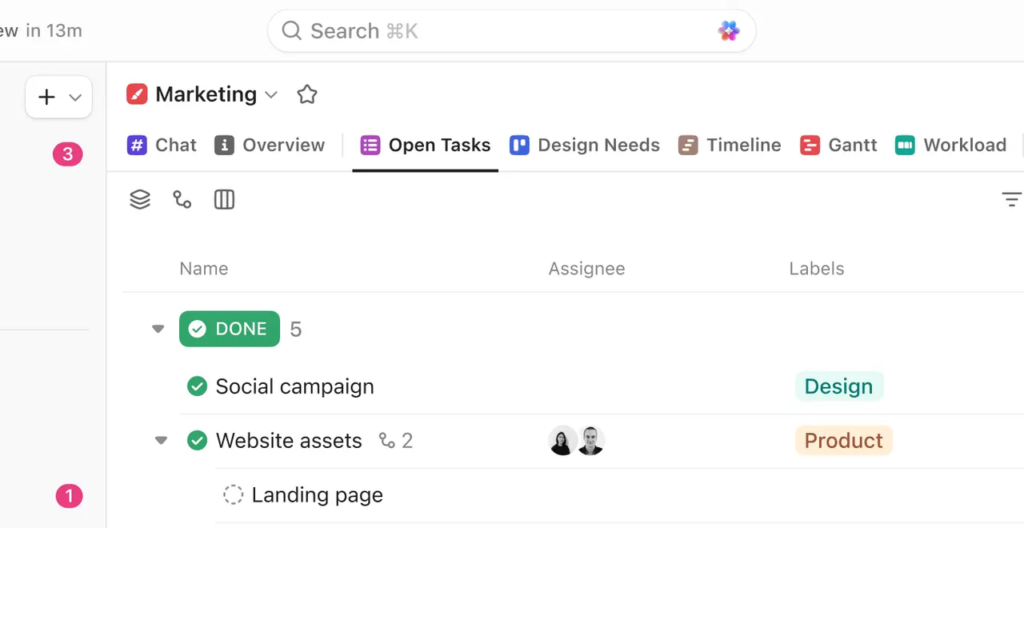
The list view is where most ClickUp users spend their day, and it is a strong view. Tasks show status, assignee, due date, priority, labels, and custom fields in columns you can shape, and subtasks nest underneath with their own owners and dates. The board view groups the same tasks by status. The calendar view shows deadlines. The Gantt view shows dependencies and the shape of a project over time. ClickUp lists more than fifteen views in total, including timeline, workload, mind map, and table views, and switching views never changes the underlying work. A task edited in the calendar is the same task on the Gantt chart.
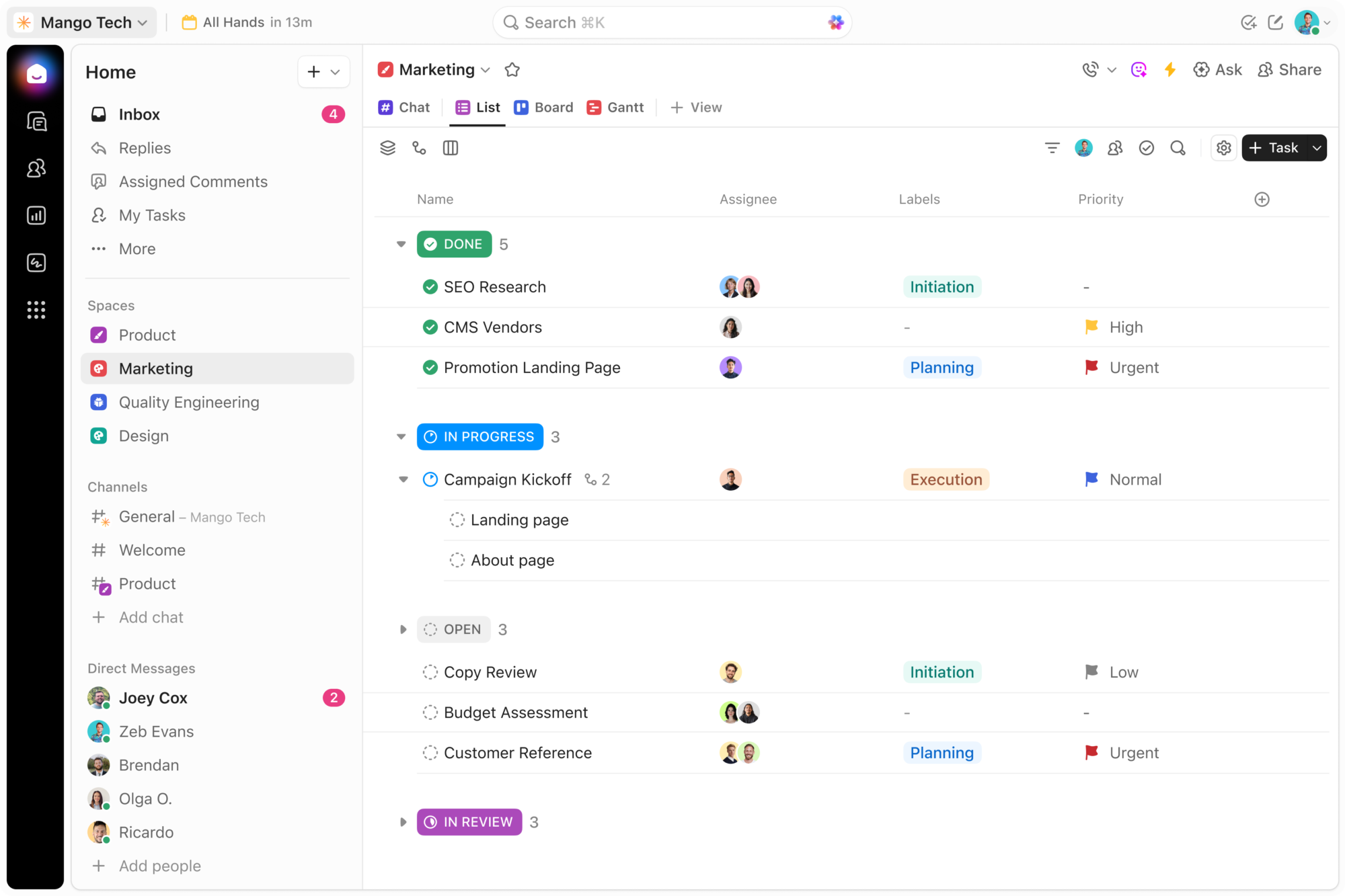
Docs, Chat, and Whiteboards are what make ClickUp an all-in-one tool instead of a task tracker with extras. Docs live inside the same workspace as the tasks, so a brief can link directly to the tasks it describes, and a task can link back to the doc. Chat sits in the same sidebar, which means a conversation about a task can turn into a task without changing apps. Whiteboards give teams a canvas for planning sessions and brainstorming, with sticky notes and shapes that convert into tasks. None of these is the best tool in its own category. ClickUp Docs is not a full knowledge base, and ClickUp Chat is not a Slack replacement for a large company. The value is that they live in one place, so the context stays attached to the work instead of scattering across apps.
Goals, time tracking, and dashboards round out the workspace. Goals connect targets to the tasks underneath them, so a quarterly objective shows its progress as the work moves. Time tracking runs inside tasks, with timers and estimates, and timesheets arrive on the Business plan. Dashboards pull charts, task lists, workload views, and time reports into one screen. The free plan covers the basics generously: unlimited tasks and subtasks, Kanban boards, calendar view, sprint management, time tracking, and video calls. The first paid plan adds custom fields and task types, unlimited Gantt charts, unlimited forms, and Goals.
The trade is complexity, and it is real. ClickUp can do so much that a new team can spend its first month configuring instead of working. The settings menus run deep, the view options multiply, and a workspace built without a plan turns into a maze of Spaces and Lists that nobody maintains. ClickUp rewards teams that design their workspace deliberately and punishes teams that add a Space whenever someone asks for one. If your team has someone willing to own the setup, that cost pays off. If nobody owns it, Asana’s simpler structure will serve you better.
What we like about ClickUp
- Free Forever has no seat cap, with unlimited members at $0, so a whole small team can run on it before paying anything.
- Core includes 1,000 automation actions a month for $9 per user per month, which covers the everyday rules a small team actually runs.
- Business includes 10 guest seats for a 1-user workspace, plus 5 per extra paid user, so client collaboration does not need a seat for every outsider.
What could be better
- Upgrading one person upgrades the whole workspace, so a single power user forces every member onto the paid tier.
- MAX costs $120 per user per month, and it is the only tier with unlimited AI fields and autopilot agents, so the full AI engine is priced for large budgets.
- Monthly billing costs $12 for Core, $25 for Business and $120 for Max, so month-to-month buyers pay noticeably more than the annual rates.
Asana in Focus
Best for: teams whose work has an order to it: marketing launches, product releases, operations checklists, and client delivery where step three cannot start until step two is signed off. See the official Asana site for current product details.
Asana organises work around tasks, and it takes that idea seriously. A task has an owner, a due date, a project, and a place in a sequence. Subtasks break it down further. Sections group tasks into stages. Dependencies say which task blocks which. When you open a project, you see the work as a list, a board, a calendar, or a timeline, but the underlying structure stays the same. That consistency is Asana’s biggest strength and its most common complaint, depending on who you ask. People who run structured projects love it, because everyone sees the same truth. People who want a freeform tracker sometimes find it rigid, because Asana keeps asking: who owns this, when is it due, and what does it depend on?
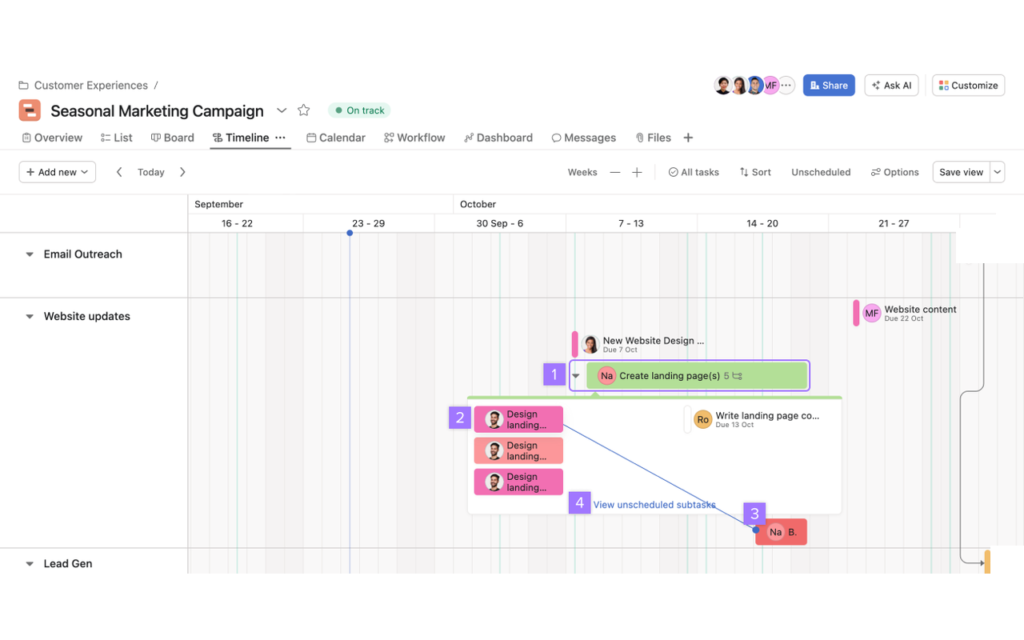
The Timeline view is where Asana earns its keep for deadline driven teams. It is a Gantt style view, available from Starter, and it shows dependencies as lines between tasks, so a slipped date shows its knock-on effects instead of hiding them. Milestones mark the dates that matter. The Workflow Builder lets teams turn a repeatable process into a template with rules attached, so a new launch or a new client onboarding follows the same steps every time. Forms turn incoming requests into tasks automatically, which suits teams that take work from other departments or from clients. Reporting dashboards arrive on Starter too, so a team lead can track overdue work, workload by person, and progress by project without exporting to a spreadsheet.
Advanced is where Asana becomes a portfolio tool. Portfolios gather related projects into one view, goals connect daily tasks to company objectives, and workload shows who is overcommitted across a portfolio. Approvals and proofing suit creative and compliance heavy teams: reviewers approve work or comment on files inside the task, instead of in a separate email chain. Native time tracking compares estimated effort against actual effort. The jump from Starter at $10.99 to Advanced at $24.99 more than doubles the per seat cost, so Advanced only makes sense when portfolios, goals, or proofing are daily needs, not occasional wishes. Teams that only need a timeline and dashboards should stay on Starter and spend the difference elsewhere.
Asana’s AI pitch in 2026 centres on AI Teammates and Asana Dash, plus AI Studio for building AI automations. Paid plans include AI features, with AI Teammates that take on defined pieces of work, Dash that answers questions across the workspace, and AI Studio for building rules that use AI. The AI helps with drafting task descriptions, summarising long threads, and triaging intake, but both vendors now bundle AI and both meter it, so treat AI as a tiebreaker, not as the decision. If your team already runs its projects in Asana and wonders how it stacks up against the visual board style, our Asana vs Monday comparison covers that pairing.
Collaboration is where Asana quietly wins for service businesses. Paid plans include unlimited free guests, so clients, contractors, and partners can comment on and follow their projects without a seat. An agency with twenty clients will feel that difference every month. A purely internal team will not care at all. The free Personal plan covers one or two people managing personal projects, with unlimited tasks and projects, list, board, and calendar views, and status updates. It is a genuine place to run personal work, and a fair way to learn the tool before a team commits.
What we like about Asana
- Personal includes unlimited storage with a 100MB cap per file, so small teams sharing briefs and mockups rarely hit a wall early.
- Starter includes 50,000 AI Studio credits per billing account each month, so AI automations are part of the plan, not a separate bill.
- Enterprise raises the AI Teammates request cap to 250 per account, which is five times the allowance on the lower paid plans.
What could be better
- Paid plans start at 2 seats, so a solo user pays for two seats from the first month.
- AI Teammates requests are capped per account, so the allowance stops growing once the team passes ten people.
- Single sign-on through SAML and automated user provisioning through SCIM sit on Enterprise only, so mid sized teams with strict IT rules face a sales conversation.
Pricing Deep Dive: What a Real Team Actually Pays
ClickUp’s pricing is simple to read once you know the plan names changed. Free Forever costs $0 and covers unlimited tasks and subtasks, Kanban boards, calendar view, sprint management, time tracking, and video calls. Core costs $9 per user per month billed annually, or $12 a month on monthly billing. The page shows a regular price of $12 struck through on the yearly view, which is the monthly rate, not an old price. Core adds custom fields and task types, unlimited storage and Spaces, unlimited forms, unlimited Gantt charts, Goals, and live chat support. Business costs $17 per user per month billed annually, or $25 a month on monthly billing, with a regular price of $25 struck through on the yearly view, which is the monthly rate. It adds advanced dashboards, webhooks and automation integrations, resource management, Google single sign-on, private views and docs, timesheets, and time in status reports. Enterprise is quoted by sales, and it adds white labeling, enterprise permissions and governance, advanced single sign-on and provisioning, audit logs, and HIPAA availability. A MAX tier sits above Enterprise for teams that want the full AI engine, with the deepest AI features in the range, at $120 a month on monthly billing.
Asana’s pricing is stable and easy to read. Personal costs $0 for one or two people, with unlimited tasks and projects, list, board, and calendar views, status updates, and time tracking through integrations. Starter costs $10.99 per user per month billed annually, or $13.49 billed monthly, and it adds Timeline and Gantt views, reporting dashboards, unlimited automations, forms, custom templates, custom fields, and unlimited free guests. Advanced costs $24.99 per user per month billed annually, or $30.49 billed monthly, and it adds unlimited portfolios, goals, resource management, approvals and proofing, tables, branching forms, native time tracking, and connections to Salesforce, Tableau, and Power BI. Enterprise is quoted by sales, and an Enterprise+ tier adds governance features for regulated organisations.
| Plan | ClickUp, per user per month, billed annually | Asana, per user per month, billed annually |
|---|---|---|
| Free | Free Forever, $0 | Personal, $0 |
| First paid plan | Core, $9 | Starter, $10.99 |
| Upper paid plan | Business, $17 | Advanced, $24.99 |
| Enterprise | Contact sales | Contact sales |
Prices are US list prices checked against vendor pricing pages.
The fair pairing is Core against Starter, and Business against Advanced, because those are the plans where both tools offer timelines, automations, and dashboards. Comparing ClickUp Core at $9 with Asana Advanced at $24.99 is a category error: Advanced buys portfolios and goals that Core never claims to offer. The table below prices three realistic team sizes on annual billing, using those fair pairings.
| Team size, billed annually | ClickUp Core | Asana Starter | ClickUp Business | Asana Advanced |
|---|---|---|---|---|
| 5 people | $45 a month | $54.95 a month | $85 a month | $124.95 a month |
| 10 people | $90 a month | $109.90 a month | $170 a month | $249.90 a month |
| 25 people | $225 a month | $274.75 a month | $425 a month | $624.75 a month |
Read that table with the real cost in mind. At the entry tier, ClickUp Core saves a 10-person team about $20 a month against Asana Starter, or about $240 a year, and the gap grows with headcount. At the upper tier the gap is wider: ClickUp Business saves a 10-person team about $80 a month against Asana Advanced, or about $960 a year. Those savings are real, and they are also the whole story only if the plans buy the same things. They do not. Asana Advanced buys portfolios, goals, workload, approvals, and proofing. ClickUp Business buys advanced dashboards, resource management, timesheets, and deeper automation integrations. Price the plan that includes your must-have features, then compare.
Two pricing traps deserve attention. First, ClickUp’s $9 and $17 figures are the annual-billing rates, and the struck-through $12 and $25 figures are the current monthly billing rates, not a discount that expires. On monthly billing you pay $12 for Core and $25 for Business. Treat the current figure as a snapshot from 11 November 2026, not a promise. Second, Asana’s free plan covers one or two people, and the third person triggers a paid plan, while ClickUp’s free plan has no such small-team ceiling. A team of three or four that wants to stay free will find ClickUp the only option of the two.
Before you pay for a year, run a two week trial with one real project, one real deadline, and one real handoff. Count how many automations fire, how many guests you invite, and how many dashboards your leadership needs. Those three numbers pick the plan for you, faster than any feature checklist.
Views: How Each Tool Shows Your Work
Both tools offer list, board, timeline, and calendar views, and both look complete on a feature page. The difference is what each view is built on, and how many views each tool offers. ClickUp lists more than fifteen views, which sounds like a lot until you use them. List, board, calendar, timeline, and Gantt cover the everyday work. Workload shows who is overcommitted. Mind map turns a brainstorm into tasks. Table view turns a project into a spreadsheet with rows and columns. Teams that use three or four views daily will love the range. Teams that use one view daily will find the rest is noise, and a new user opening ClickUp for the first time can feel lost among the options.
Asana keeps the view list short: list, board, calendar, timeline, and Gantt. That is a deliberate choice, and it shows in how clean each view feels. The list view stays readable when a project holds hundreds of tasks, because Asana does not try to show every custom field at once. The board view groups tasks by stage. The timeline view draws dependencies as lines between tasks, so a slipped date shows its knock-on effects. Switching views never changes the underlying work. A task edited in the calendar is the same task on the timeline. That discipline suits teams that manage work as a sequence, where the order of tasks is the plan.
For sprint style work, neither tool is a Jira replacement, so compare both against a dedicated agile tool before committing, and read our Jira alternatives guide for the options. If your team runs marketing, operations, and cross functional projects, either tool covers the views you need, and the choice comes back to range against restraint.
If price is the deciding factor, ClickUp costs less at both tiers we compared, and its free plan covers a bigger team. If clarity of views is the deciding factor, Asana’s shorter list is easier to learn and harder to get wrong.
Tasks, Docs, and Whiteboards: The All-in-One Question
This is the section where the two tools diverge, and it is the section that should decide the purchase for most teams. ClickUp is built to replace several tools at once. Docs live in the same workspace as the tasks, so a brief links to the tasks it describes. Chat lives in the same sidebar, so a conversation about a task becomes a task without changing apps. Whiteboards give teams a canvas for planning, with sticky notes and shapes that convert into tasks. Goals connect targets to the tasks underneath them. A team that buys ClickUp can, in theory, cancel a docs tool, a chat tool, and a whiteboard tool, and run everything in one subscription.
Asana takes the opposite bet. It does one job, task and project management, and it does it well, and it expects you to keep your docs, chat, and whiteboards elsewhere. Asana has project docs and notes, meeting notes and briefs that sit next to the tasks they describe, and that covers the everyday need. Teams that write long documents usually keep them in a dedicated docs tool and link them into Asana, which is why our comparison of Notion alternatives matters for Asana buyers. The integration list covers the usual suspects, so the docs tool, the chat tool, and the file store all connect, and the links stay live.
Which bet is right depends on how your team already works. A small team that currently pays for four tools and uses each one lightly will save money and context by consolidating on ClickUp, because the switching cost between apps is a real tax on a small team. A larger team that already has a docs standard, a chat standard, and a file store will find ClickUp’s built-in versions duplicate tools nobody wants to abandon, and Asana’s clean integrations will fit better. The all-in-one promise is only a saving if you actually cancel the other subscriptions. If you keep paying for them, ClickUp’s extra features are features you pay for twice.
There is also a quality question. ClickUp Docs handles briefs, meeting notes, and wikis well enough for most teams, and its whiteboards handle planning sessions well. Neither replaces a specialist tool for a team whose whole job is writing or design. Asana does not pretend to replace them. If your docs are the product, keep a docs tool and pick the project tool on its project merits.
For a team choosing between consolidation and specialisation, ClickUp is the consolidation pick and Asana is the specialisation pick, and neither is wrong.
Automations: Metered Allowances Against Unlimited Rules
Automation is where the price gap turns into a workflow gap. Asana’s rules run on triggers and conditions inside a project: when a task moves to a section, when a custom field changes, when a due date approaches, when an approval is requested. Actions can reassign, comment, move, set dates, add subtasks, or start an approval. Because rules are unlimited from Starter, teams build them for every repeatable handoff: intake triage, review routing, overdue nudges, and completion notifications. The Workflow Builder packages rules into templates, so a new project inherits the automation instead of starting from zero. A busy operations team can run thousands of rule actions a month and never think about a cap, because there is none to think about.
ClickUp’s automations work differently. Rules trigger on status changes, assignments, due dates, and custom field changes, and they can reassign, comment, move, and notify, much like Asana’s. The difference is the allowance. Each ClickUp plan includes a monthly automation allowance, and the allowance rises with the plan. A small team running a handful of rules will never notice it. A busy team automating every handoff across many Lists will notice it, because the allowance is shared across the workspace and it resets monthly. When the allowance runs out, the rules stop firing until the next month or the next plan. That is a manageable limit if you count your automations, and a nasty surprise if you do not.
Both tools connect to Zapier and Make, and that matters when a needed integration is missing. A Zap can create ClickUp tasks from form submissions, sync Asana tasks to a CRM, or push completed work into a reporting sheet. Teams that already pay for an automation platform can bridge gaps on either tool, but they should count that subscription in the total cost. Our guide to Zapier alternatives covers cheaper ways to build those bridges. As a rule, if you need more than a handful of cross-tool automations every day, Asana’s unlimited rules plus a modest Zapier or Make plan beats ClickUp plus constant allowance anxiety. If your automations are simple status recipes inside one workspace, ClickUp’s builder gets you there, and the allowance will last the month.
On automations alone, Asana is the safer pick for a team that automates heavily, and ClickUp is fine for a team that automates lightly.
Integrations: A Thousand Connections Against a Focused Hundred
ClickUp lists more than 1,000 integrations, and the number reflects a real catalogue. The list covers chat, email, calendars, file storage, CRM tools, development tools, and design tools, with Google Drive, Dropbox, and Box named on the Core plan alone. A team that lives in many apps will find a native connection for most of them, and the rest can be bridged through Zapier, Make, or webhooks on the Business plan. The breadth matters most for teams consolidating onto ClickUp, because every tool you keep outside the workspace needs a connection back into it, and a missing connection becomes a manual copy-and-paste job.
Asana lists more than 100 free integrations, and the list covers the tools most teams actually use: Slack, Google Drive, Zoom, Microsoft 365, Salesforce, and the rest of the usual stack. The integrations are deep where they exist, with two-way sync on the important ones, and the connections to Salesforce, Tableau, and Power BI on Advanced suit teams that report in a business intelligence tool. A team that needs an unusual integration may find Asana’s list shorter than ClickUp’s, and that is the honest trade: Asana covers the common stack well and the long tail less well.
In practice, the integration count decides little for most teams. Count the apps your team actually opens every day. If the list is ten apps long, both tools cover it. If the list is thirty apps long, ClickUp’s broader catalogue is worth checking app by app, because the one missing connection is the one that will hurt. Either way, check the specific integration you need before you buy, not the headline count.
AI: ClickUp Brain Against Asana Intelligence
Both vendors now bundle AI into their paid plans, and both meter it, so the AI comparison is about packaging more than capability. ClickUp’s AI story in 2026 is ClickUp Brain, now presented with standard models on a trial for Free and Core and unlimited from Business upward, plus Super Agents that capture work from chat and turn conversations into structured tasks with owners and due dates. The pitch is that Brain knows your workspace: it can find answers across tasks, docs, and conversations, draft updates, generate subtasks, and summarise threads without leaving the app. The full AI engine, with the deepest model access and autonomous agents, sits on the MAX tier above Enterprise, which is priced for teams that treat AI as a core capability in its own right.
Asana’s AI story centres on AI Teammates and Asana Dash, plus AI Studio for building AI automations. AI Teammates take on defined pieces of work, like onboarding a new hire or triaging intake, and they work from the organisation’s own data. Dash answers questions across the workspace, pulling from tasks, projects, and portfolios. AI Studio lets teams build rules that use AI, such as classifying incoming requests or drafting status summaries, and it is included on the paid plans. AI Meetings, on Advanced and above, suggest action items from meetings and link summaries back to projects. The AI helps with drafting task descriptions, summarising long threads, and triaging intake, which is the same everyday work ClickUp’s AI targets.
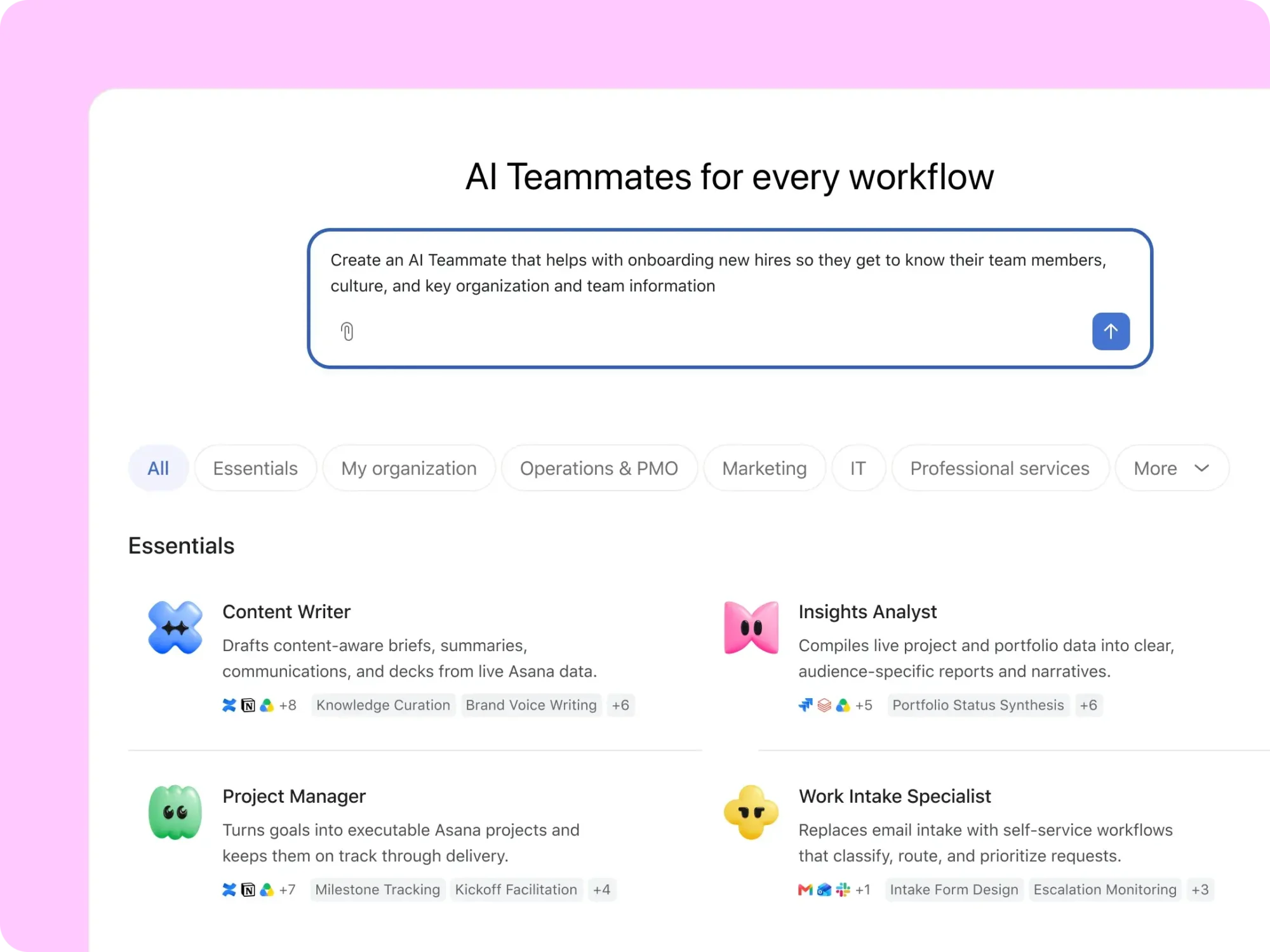
The practical difference is where the AI lives in the price. ClickUp includes standard AI models on every paid plan, and charges its highest price only for the full AI engine. Asana includes its AI features on every paid plan, with deeper AI Studio and AI Meetings on the higher tiers. Neither vendor gives unlimited AI to everyone. A team that uses AI for summaries and drafting a few times a day will be fine on either tool’s paid plans. A team that wants AI agents running work autonomously should price ClickUp’s MAX tier and Asana’s Advanced tier side by side, and trial both before committing.
On AI, treat it as a tiebreaker. The tool that fits your workflow will serve you better than the tool with the flashier AI demo, because you will use the workflow every day and the AI a few times a week.
Reporting and Dashboards: Portfolio Views Against Workspace Rollups
Reporting separates the two tools more cleanly than task views do. Asana reports from the task layer upward. Dashboards on Starter show overdue tasks, tasks by assignee, tasks by project, and custom field breakdowns. Advanced adds portfolios, which roll many projects into one status view, and goals, which show progress against objectives. A programme manager running twenty projects sees each project’s health, its milestones, and its risks in one portfolio. Workload views show who is overcommitted across the portfolio, which is the report that prevents burnout before it happens.
ClickUp reports from the workspace layer upward. Dashboards combine charts, task lists, workload views, and time reports into one screen, and the Business plan unlocks the advanced dashboard options. A marketing lead can watch several campaign Lists from one screen. An operations manager can roll up request volumes, turnaround times, and team load without building a report in another tool. Timesheets and time in status reports arrive on Business, which suits teams that bill by the hour or track cycle time. The dashboards are flexible and visual, and a team that designs them well gets a live briefing document instead of a weekly status meeting.
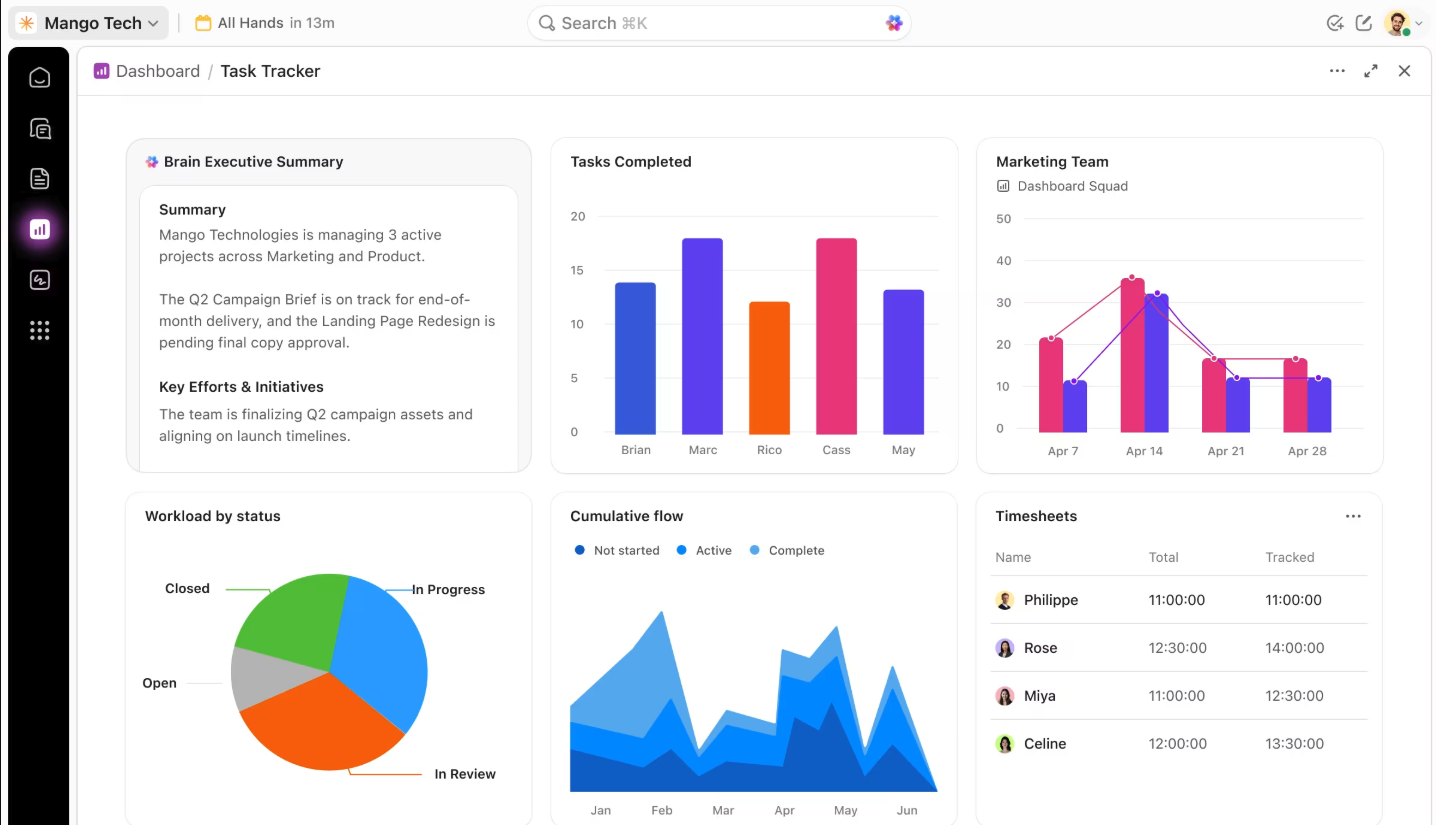
The limit on both sides is the plan gate. Asana’s portfolios and goals sit on Advanced, so a team buying Starter for portfolio reporting will be disappointed. ClickUp’s advanced dashboards sit on Business, so a team buying Core for executive reporting will be disappointed in the same way. Buy on the daily workflow, then check that the reporting tier you need sits on the plan you can afford.
For reporting, Asana’s portfolios are deeper for programme management, and ClickUp’s dashboards are more flexible for workspace rollups. Pick the reporting style your leadership actually reads every Monday morning.
Mobile Apps and Working on the Move
Both tools offer mobile apps, and both cover the essentials: viewing work, updating status, commenting, and approving. A team lead checking a launch from the airport can see what is done, what is blocked, and who owns the next step, on either tool. The differences show up in the heavier work. Building automations, designing dashboards, and managing portfolios still belong on a desktop, on either tool. ClickUp’s mobile app carries more of the workspace with it, including Docs and Chat, which suits a team that works from phones often. Asana’s mobile app is cleaner and simpler, which suits a team that checks work on the move and does the real work at a desk. If your team works mostly from phones, trial both apps with the same real project and see which one your team opens without being asked.
For mobile, both apps cover the daily essentials, and the desktop remains where the serious setup happens.
Ease of Use and Learning Curve
Asana is the easier tool to learn, and it is not close. A new user can open Asana, create a project, add tasks, assign owners, and set due dates within an hour, without a tutorial. The structure is the teacher: projects hold tasks, tasks hold subtasks, and the views are few enough to learn in a day. A team can roll Asana out in a week, with a short onboarding session and a template or two. The cost of that simplicity is flexibility. A team that wants a board shaped around an unusual process will find Asana’s structure resists them, and the answer is usually to adapt the process to Asana, not the other way around.
ClickUp is the harder tool to learn, and the payoff is flexibility. A new user faces Spaces, Folders, Lists, custom fields, views, and automations, and the first week can feel like learning a new language. Teams that invest in setup, with someone owning the workspace design and a short guide for new joiners, end up with a tool shaped exactly around their work. Teams that skip the setup end up with a maze. If your team has no one willing to own the setup, that risk matters more than the price gap.
There is a simple test. Give both tools the same real project for two weeks, with the same deadline and the same handoffs, and watch which one your team opens without being asked. The tool your team opens is the tool that will still be used in six months. A well set up tool on either platform beats a powerful tool that nobody opens.
On ease of use, Asana is the safer pick for a team that needs adoption fast, and ClickUp is the stronger pick for a team willing to invest a week in setup.
Migration: Moving Between ClickUp and Asana
Switching between ClickUp and Asana is doable, and it is never one click. Both tools import from spreadsheets and CSV files, and both offer importers for common tools. A realistic migration runs in five stages. First, export each project or List and audit what you actually use: active tasks, templates, custom fields, automations, and dashboards. Second, map the structure: Asana sections become ClickUp Lists or statuses, Asana custom fields become ClickUp custom fields, Asana subtasks become ClickUp subtasks, and the reverse when moving the other way. Third, import one pilot project and check dates, owners, dependencies, and attachments before touching the rest. Fourth, rebuild automations by hand, because Asana rules and ClickUp automations do not translate one to one. Fifth, freeze edits in the old tool on cutover day, so nobody updates both systems and creates two versions of the truth.
Expect three things to break, and plan for them. Dependencies need checking by hand, because a timeline that looked right in Asana can lose its logic in a flat List import. Dashboards need rebuilding, because a portfolio view and a ClickUp dashboard are different reports. Automations need rethinking, because a rule that fired freely on Asana may count against an allowance on ClickUp. Budget a week for a small team and a month for a large one, and keep the old tool read-only for a quarter, so historical work stays searchable.
Teams that must run both tools for a while, after a merger or an acquisition, can sync selected work through Zapier or Make. That works for a handful of shared projects. It does not work as a permanent architecture, because two-way sync across hundreds of tasks creates conflicts, duplicates, and silent failures. Pick a system of record, sync only what the other side must see, and set a date to consolidate. Running both indefinitely costs two subscriptions and one confused team.
Migration is possible in either direction, and the cost is measured in weeks, not in licence fees.
Which One for Which Team
Pick ClickUp if you want one workspace for tasks, docs, chat, and dashboards, and you want the lowest honest price for a capable team plan. It fits startups and small businesses that currently pay for several tools and use each one lightly, marketing teams that run campaigns, content, and launches in one place, and operations teams that track many kinds of work in parallel. You get a free plan that covers a real team, Core at $9 per user per month, and Business at $17 with advanced dashboards and deeper automation. If your team has someone willing to own the setup, ClickUp rewards that investment.
Pick Asana if your work runs on deadlines that depend on each other, if handoffs must happen in order, and if accountability matters more than visual flair. Marketing teams running launches, product teams shipping releases, operations teams running repeatable processes, and agencies managing client delivery all fit this shape. You get timelines with dependencies from Starter, unlimited automations from Starter, dashboards from Starter, and portfolios and goals on Advanced. If your team already uses a separate docs tool and a separate CRM, Asana slots into that stack cleanly.
Pick ClickUp Core if you are a team of three to ten people that outgrew a free plan and wants Gantt charts, Goals, and custom fields without paying for portfolio features. Pick Asana Starter if you are a team of three to ten people that runs deadline driven work and wants unlimited automations from day one. Pick ClickUp Business if you need advanced dashboards, timesheets, and resource management for under $20 per user per month. Pick Asana Advanced if you manage a portfolio of projects across departments and need goals, workload, and approvals as daily tools.
A solo user or a pair should also think carefully. Asana’s free Personal plan covers one or two people, and a team of three pays from the third seat. ClickUp’s free plan covers a bigger group at $0, which makes it the better free starting point for a small team that will grow past two people soon. A team that manages a simple tracker, like a content calendar with no dependencies, may find both tools heavier than they need, and should look at a simpler board tool first. Our guide to Trello alternatives covers the lighter end of the market for exactly that case.
When Each Tool Is Still the Right Call
Leaving a tool you already use is not right for every team, and this guide would be dishonest if it pretended otherwise. ClickUp is still the right call when your team has built its workspace around it and the pain is small. If the complaint is one missing view or one automation limit, check whether Business at $17 a month fixes it before you move a whole workspace to a new platform. Migration costs time, redirects, and goodwill, and a team that moves for a small saving often finds the new tool has its own gaps.
Asana is also the right call when your team already runs on it and the pain is small. If the complaint is one missing feature, check whether Advanced at $24.99 a month fixes it before you move a whole portfolio to a new platform. If your team already runs Asana and wonders whether the grass is greener, read our Asana alternatives guide before moving, because the alternatives solve different problems and ClickUp is only one of them. The moment to switch is when the pain is structural, not cosmetic. If your automations keep hitting a monthly allowance, or your work needs a structure the tool will not give you, or your free plan stops covering your team size, then the other tool is worth the move. Stay when the tool fits and the bill is fair. Leave when the work has outgrown the tool, not when a review told you to.
Final Thoughts
ClickUp vs Asana comes down to a choice between an all-in-one workspace and a focused task system, and most teams already know which one they need. ClickUp suits teams that want tasks, docs, chat, and dashboards in one place, and it rewards them with the lowest prices in this comparison and the widest range of views. Asana suits teams whose work has an order, a deadline, and an owner, and it rewards them with unlimited automations, strong timelines, and portfolio depth at a fair price. Neither tool is a bad buy. The bad buy is the tool that fights the way your team already works, bought because a demo looked good or a per seat price looked low.
FAQs
Is ClickUp better than Asana for project management?
It depends on the project. ClickUp is stronger for teams that want tasks, docs, chat, whiteboards, and dashboards in one workspace, because its all-in-one design replaces several tools at once. Asana is stronger for deadline driven projects with dependencies, timelines, and handoffs in a set order, because its task structure, Timeline view, and unlimited rules suit that work. For most small teams that want value and range, ClickUp is the safer default. For most structured teams, Asana is the easier adoption.
Which is cheaper, ClickUp or Asana?
ClickUp is cheaper at both tiers we compared. ClickUp Core costs $9 per user per month billed annually against Asana Starter at $10.99, and ClickUp Business costs $17 against Asana Advanced at $24.99. A 10-person team pays $90 a month on Core against $109.90 on Starter, and $170 a month on Business against $249.90 on Advanced. Older guides that quote ClickUp at $7 and $12 quote retired prices, so ignore them. Always price the plan that includes your must-have features, because the cheaper plan that lacks them is not a saving.
Do ClickUp and Asana have free plans?
Yes, both offer free plans. ClickUp Free Forever costs $0 with unlimited tasks and subtasks, Kanban boards, calendar view, sprint management, time tracking, and video calls. Asana Personal costs $0 for one or two people, with unlimited tasks and projects, list, board, and calendar views, and status updates. ClickUp’s free plan covers a bigger team, while Asana’s free plan stops at two users. Neither free plan suits a large team, because the third person triggers a paid plan on Asana, and the reporting and automation depth lives on the paid tiers on both tools.
Does ClickUp have unlimited automations?
No. ClickUp includes a monthly automation allowance on each plan, and the allowance rises with the plan. Asana includes unlimited automations from Starter upward, with no monthly allowance to watch. A small team running a handful of rules will never notice ClickUp’s limit. A busy operations team automating every handoff across many Lists should check the allowance on the plan it intends to buy, and should treat Asana Starter as the safer pick for heavy automation.
Does Asana have docs and whiteboards like ClickUp?
Asana has project docs and notes that sit next to the tasks they describe, which covers briefs and meeting notes. It does not have a built-in whiteboard or a built-in chat tool like ClickUp, and teams that write long documents usually keep them in a dedicated docs tool and link them into Asana. ClickUp includes Docs, Whiteboards, and Chat in the same workspace, so a team that wants one tool for everything will find more of it in ClickUp.
Can I migrate from ClickUp to Asana, or from Asana to ClickUp?
Yes, both tools import from spreadsheets and CSV files, and both offer importers for common tools. There is no one-click migration, because automations and dashboards do not transfer automatically. Plan to map sections to Lists, custom fields to custom fields, and subtasks to subtasks, import one pilot project first, rebuild automations by hand, and freeze edits in the old tool on cutover day. Budget a week for a small team and longer for a large one.
Which tool is easier for non-technical teams?
Asana, in most cases. Its structure of projects, sections, tasks, and subtasks is easy to grasp, and a new user can run a project within an hour. ClickUp is more powerful and more flexible, but its hierarchy of Workspaces, Spaces, Folders, and Lists takes longer to learn, and a team without someone owning the setup can end up with a maze. If adoption by non-technical stakeholders is the main risk, Asana’s simplicity is a genuine advantage.
Which should a small business pick, ClickUp or Asana?
A small business that wants one tool for tasks, docs, and dashboards at the lowest price should start with ClickUp Core at $9 per user per month. A small business running deadline driven work with regular handoffs should start with Asana Starter at $10.99 per user per month, for timelines, dashboards, and unlimited automations. Either way, trial both with one real project for two weeks and count automations, guests, and dashboard needs before committing to a year.
ClickUp for all-in-one value, Asana for structured, deadline driven teams
If you want tasks, docs, chat, and dashboards in one workspace at the lowest price, choose ClickUp Core at $9 per user per month, stepping up to Business at $17 for advanced dashboards. If your work runs on deadlines, dependencies, and handoffs in a set order, choose Asana Starter at $10.99 per user per month, with unlimited automations, timelines, and dashboards from day one. Buy Advanced only for portfolios and goals, and buy Business for reporting depth. Trial both on one real project, and let automations, guests, and dashboards pick the plan.
This kind of research, applied to your growth
If you run a SaaS business, SaaS Harvest can do this kind of digging in your market and turn it into search traffic that signs up.